
Manage your school on a wide screen.
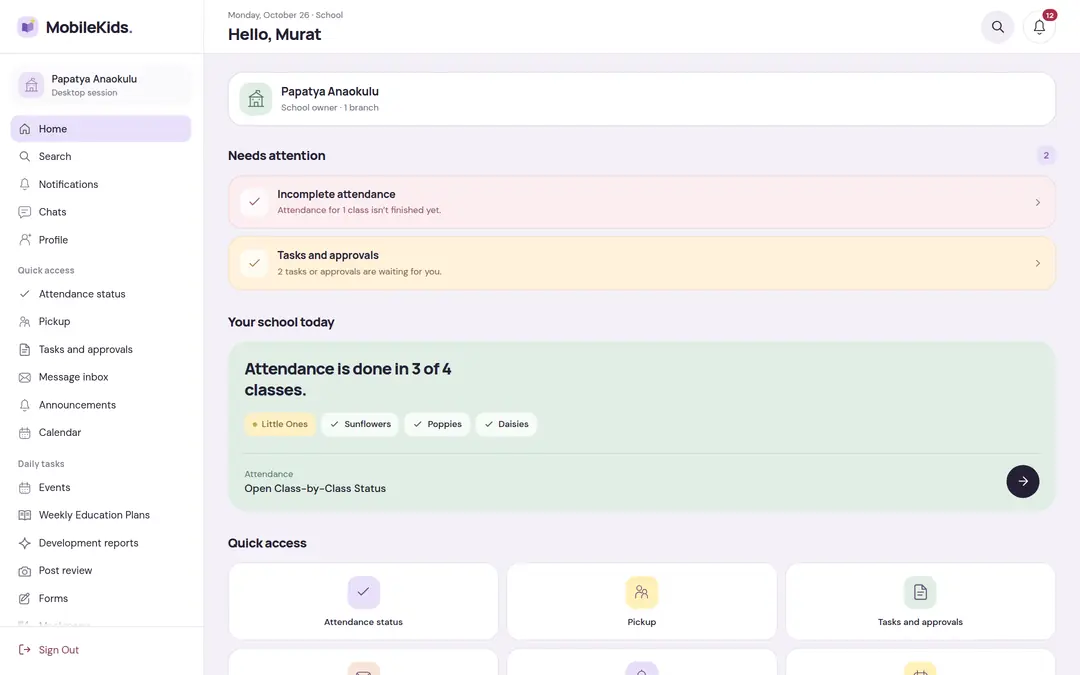
Manage on Desktop opens your school’s screens in a browser on a computer, with a side menu. There is no password: your phone approves every sign-in.
- Nothing to install, it opens in a browser
- No password, approval by phone
- The same school screens, the same permissions
A wide screen for long tasks
The phone is for quick glances during the day; the desktop is for month-end, period reports and long lists. Both show the same school and the same records.
Finance and reports
Parent accounts, bank statement matching, budget, finance summary and period reports are easier to read and enter on a wide screen.
Long lists
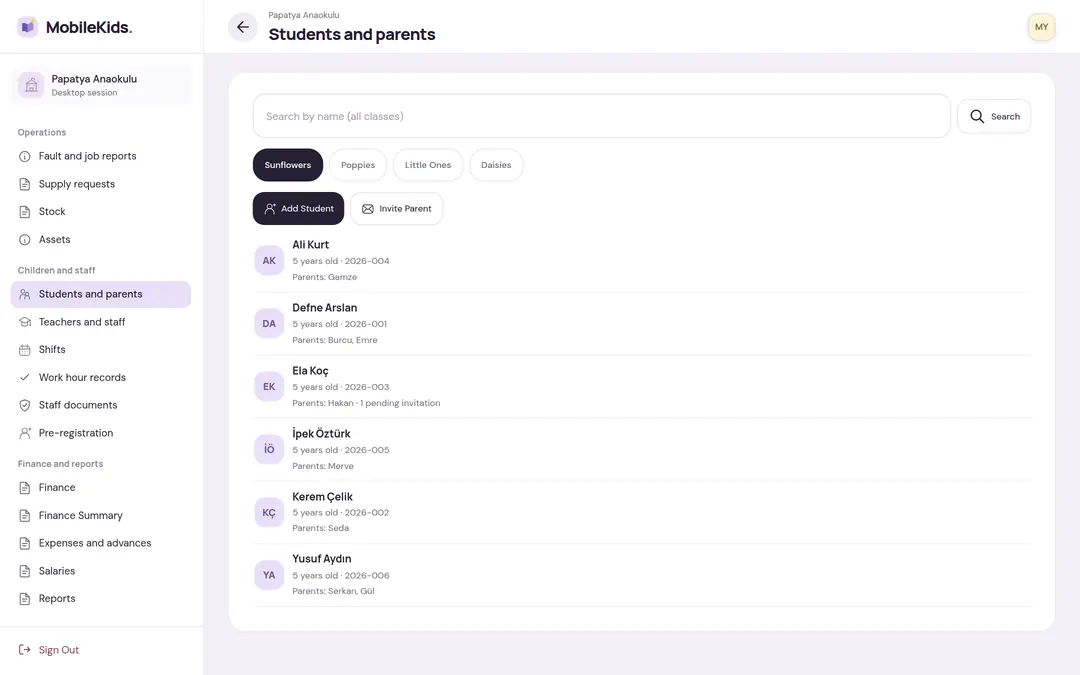
Student and parent, staff, pre-registration and stock lists open in a wide layout; search and class selection sit together.
Side menu
School screens sit on the left in groups; the screen you’re looking for is always one click away.
The same school screens
The desktop isn’t a separate program, it’s the wide version of the school screens on the phone. A record you enter in one place shows up in the other; your permissions don’t change.
Sign-in: a code on the phone, a number in the browser
Your phone opens the desktop every time. The code is typed into the browser, and approval is given from the phone.
Create the code on the phone
In the school area, you open Manage on Desktop from the Profile tab, enter your PIN and choose the school to open. The phone shows a single-use 6-digit code that is valid for a few minutes.
Type the code into the browser
The screen on the phone also shows the page to open in the browser. When you type the code there, the browser shows a two-digit matching number.
Choose the same number on the phone
An approval request with the browser’s details opens on the phone. You tap the number shown in the browser; the school screens open in the browser.
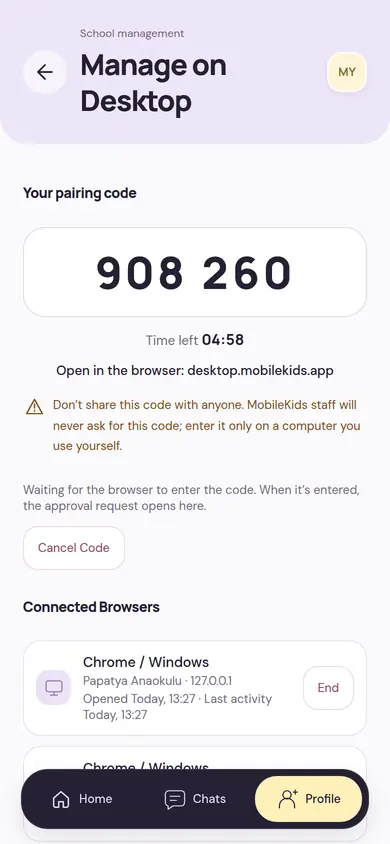
On the phone: Manage on Desktop
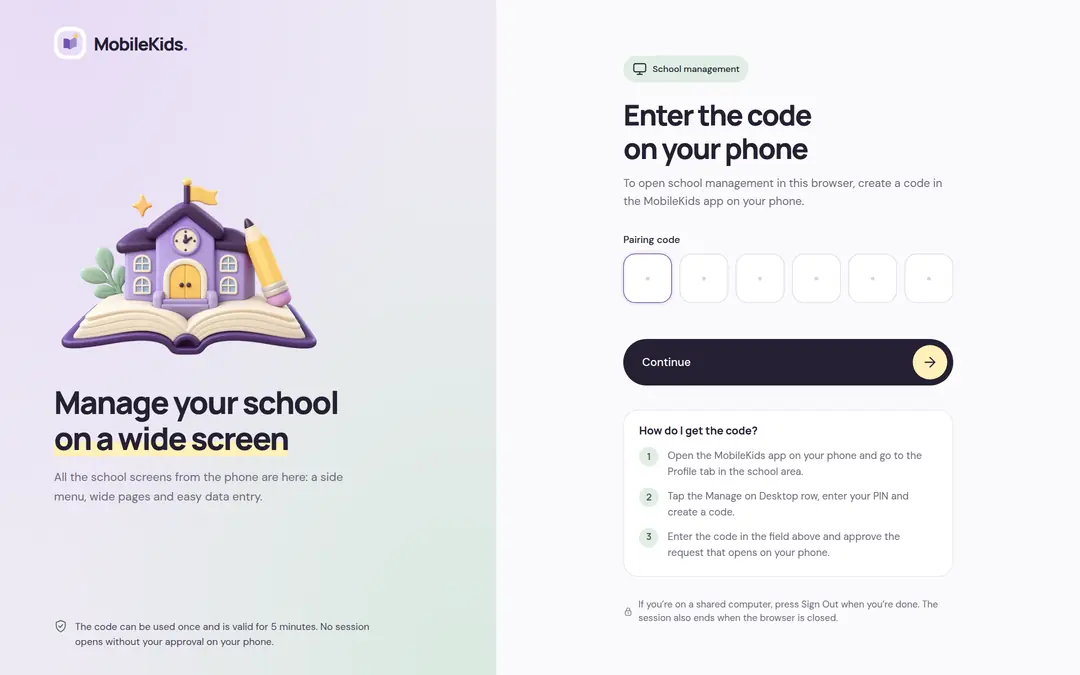
In the browser: Desktop Sign-In
The code alone isn’t enough: a guessed code, or one told to someone else, doesn’t open a session unless the number in the browser is chosen on the phone. A wrong number rejects the request; if you didn’t start the request, tap It’s Not Me on the phone. If you create a new code, the old one becomes invalid.
What’s on the desktop
From the school’s home screen to finance, from the calendar to student lists; every school screen you manage on the phone also opens on the desktop.
Students and Parents
A class-by-class student list: each child’s age, student number, linked parents and pending parent invitations. Adding students and inviting parents is done from here too.
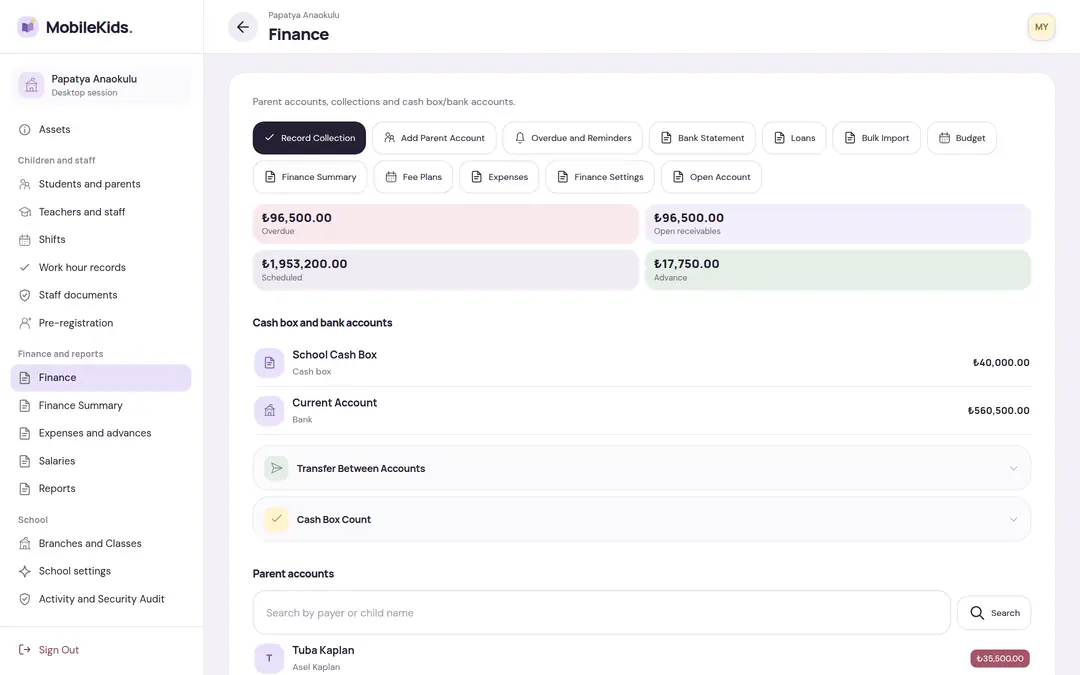
Finance
Overdue and open receivables, scheduled collections and advances; the balances of cash box and bank accounts, and parent accounts. Collection records, bank statement, budget and expenses open from the same screen.
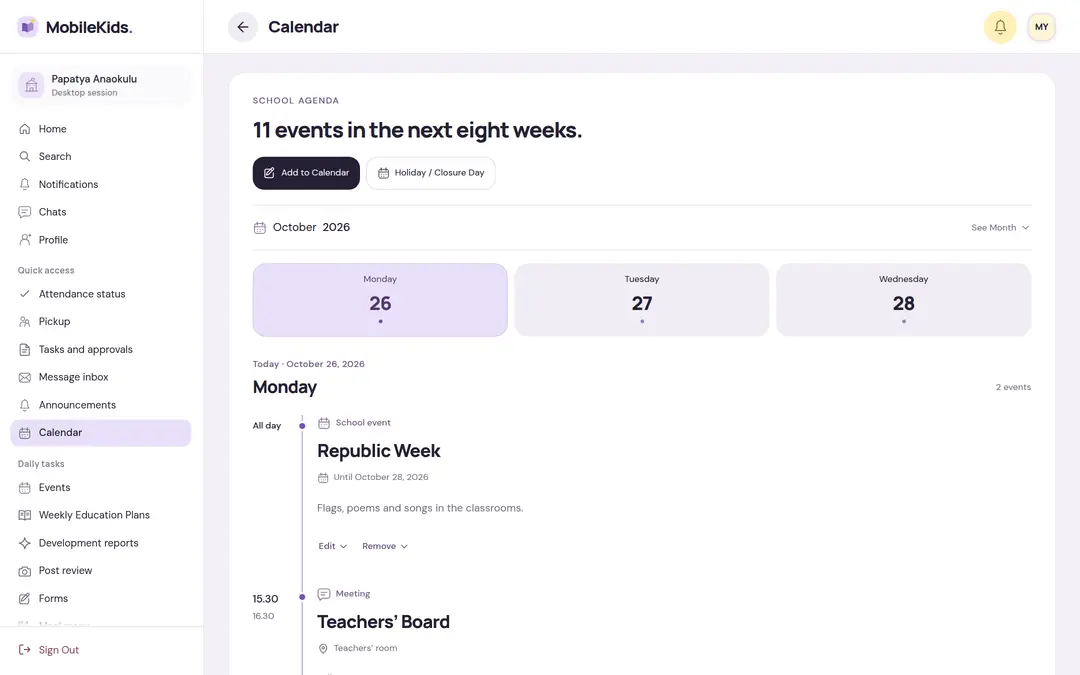
Calendar
The school agenda: events in the coming weeks, a day strip and today’s flow. You add events, holidays or closure days to the calendar.
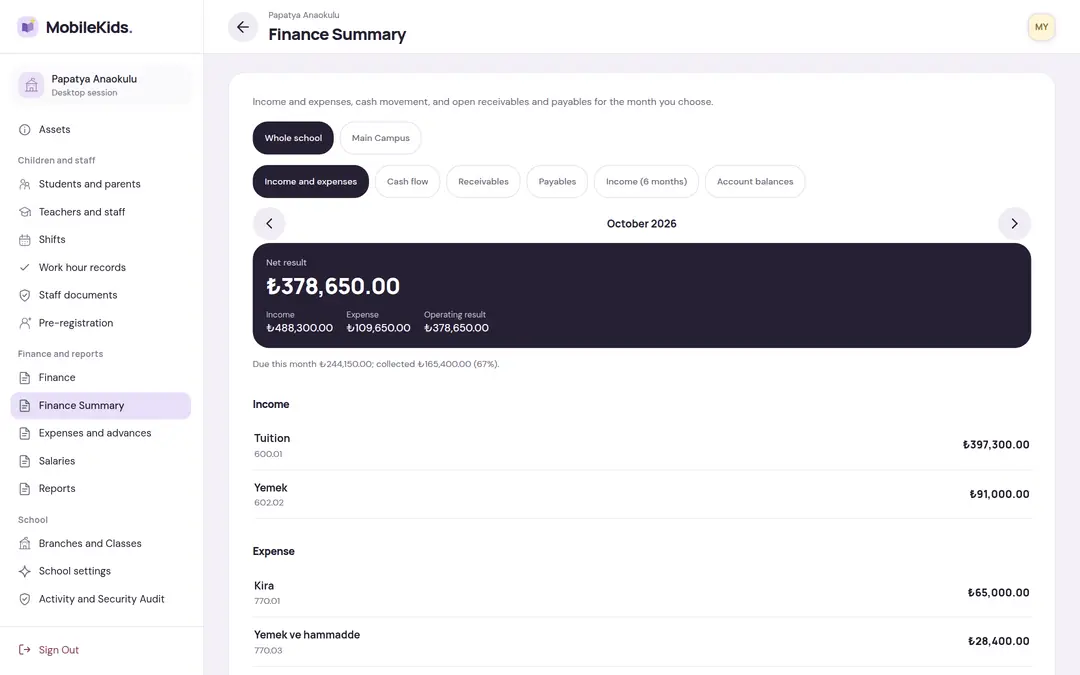
Finance Summary
The income and expense result of the month you choose, for the whole school or a single branch. Cash flow, receivables, payables and account balances are on separate tabs.
A short session, control on the phone
The desktop session is separate from the phone’s session and shows only the school you chose. How long it stays open is limited; you can always see which browser is connected from the phone.
The key is on the phone
- Every new browser sign-in reaches you as a notification.
- In the Connected Browsers list you see when each was opened and last used, and you close one or all of them.
- Signing out on the phone or changing your PIN closes open browsers too.
- There is no password to be stolen or forgotten.
On a shared computer
- When you’re done, press Sign Out; the session also ends when the browser closes.
- There is no remember me option; every new session is approved again from the phone.
- If there’s no activity for a long time a warning appears; if you don’t say Continue, the session closes.
- Actions that belong to the phone, like changing your PIN or phone number, aren’t done on the desktop.
Anyone with a role at the school, with their own permissions
The desktop is opened by the school owner, managers and staff who have access to school screens. Everyone sees on the desktop what they see on the phone.
- Permissions are the same: a permission limited to a branch or class stays limited on the desktop.
- If you have roles in more than one school, you choose the school to open when you create the code; the session shows only that school.
- Desktop sessions also appear on the school’s Activity and Security Audit screen.
What stays on the phone
- Parent screens and the teacher’s class screens
- Switching to the parent or teacher role
- Changing your PIN and phone number
- Creating the desktop code and approving the browser
Frequently asked
Short answers about the desktop. There are more on the Frequently Asked Questions page.
Do I need to install a program on my computer?
No. The desktop opens in a browser on a computer. The Manage on Desktop screen on the phone also shows which page to open in the browser.
Why is there no password?
Your phone approves every sign-in: the code you create on the phone and the matching number shown in the browser are needed together. That way there is no password to be stolen, forgotten or shared.
Can I open the desktop if my phone isn’t with me?
No. A new desktop session opens only with the phone’s approval. An open session continues until it expires or is closed.
What do I do if a browser I don’t recognize appears as connected?
On the phone, you close that session, or all of them, from the Connected Browsers list. If you didn’t enter the code, it’s a good idea to change your PIN; when the PIN changes, open browsers are closed too.
I have roles in more than one school. Do they all open on the desktop?
Each session is for a single school. You choose the school to open when you create the code; for another school, you create a new code.
Do parents and teachers use the desktop?
The desktop is for school management. Parent screens and the teacher’s class screens stay on the phone; a person with access to school screens can open those screens on the desktop too.
Try the desktop at your own school
The desktop isn’t a separate product, it’s part of the school plan; you use it in the 14-day trial too. Tell us about your school, and we’ll explain what it takes to start.