
Privacy isn’t a setting, it’s the default.
Everyone who uses MobileKids is an adult, but the content often belongs to a child: their photo, their attendance, their health note. This page explains how the app protects it, what it deliberately doesn’t do and who can see what.
- No ads
- No analytics or tracking tools
- No face recognition
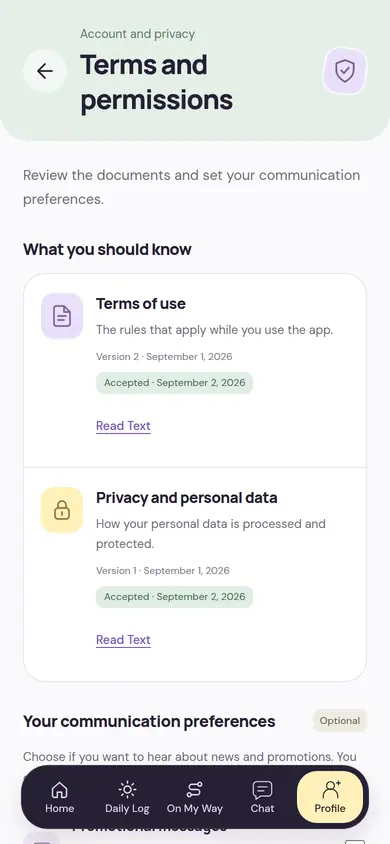
Three principles, in every decision
These three principles decide how we build a feature. When convenience and privacy clash, we always go back to this order.
Children’s data comes first
Parents, teachers and schools use the app; the day belongs to the child. How a decision affects a child’s data comes before making the work easier.
When in doubt, less data and a narrower audience
Information that isn’t needed isn’t asked for; if it’s unclear who should see something, fewer people see it. A child’s phone or email isn’t kept; staff time records don’t ask for location or biometric data.
No guessing at behavior
A behavior that hasn’t been decided isn’t filled in by assumption. A feature that stays unclear remains off until the decision is clear; the health and medication modules are examples.
What the app deliberately doesn’t do
These aren’t settings that can be turned off; they simply don’t exist in the app. There is nowhere in a school’s settings to turn them on, either.
- Shows no ads and hosts no advertising tools.
- Uses no analytics or tracking tools (SDKs).
- Does no face recognition; it doesn’t find a child in a photo by itself.
- Doesn’t analyze photos for age or any other trait.
- Doesn’t publish photos and videos anywhere outside the app.
- Doesn’t put health information in notification text.
- Doesn’t diagnose or recommend treatment.
Everyone sees as much as their role allows
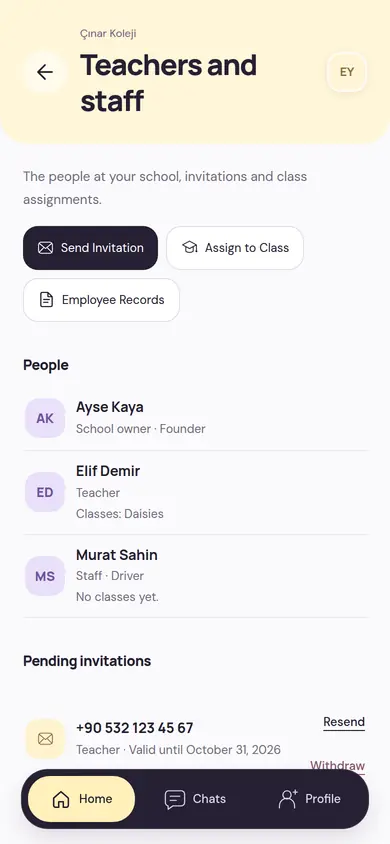
Each person signs in with their own phone number. A teacher sees their own class, someone whose permission is limited to one branch sees that branch, and a parent sees only their own child’s day.
- A school has owner, manager, teacher and staff roles.
- Permissions are given by role; they can be limited to a branch or a class.
- Some actions, like granting permissions, belong only to the school owner.
One number, one person
Sign-up uses a phone number and an SMS code. The same person can be both a parent and a teacher; they switch roles with a single account, and each role opens its own screens.
PIN and lock
Sign-in uses a 6-digit PIN. After 5 wrong tries in a row, the PIN is locked for an hour.
By invitation only
Teachers, staff and managers join through an invitation the school sends to their phone number; an invitation is valid for 7 days and can be withdrawn.
Parents are tied to the child
Parents are invited per child, and the legal guardian is marked separately. Decisions like photo permission are made by the legal guardian.
Each school in its own space
Schools’ data is kept apart. Someone with a role at another school can’t see or change your school’s records.
Search follows permissions too
Search never goes beyond your permissions. A parent searches within the selected child’s area, a teacher within the selected class.
Photos and videos, only for those who need to see them
A photo shared from class is not a publicly open file. On every opening, who is looking and whether they’re allowed to see it is checked again.
- Photos and videos don’t sit at a public address and aren’t stored in a public cache.
- Whether other families in the class can see frames that include their child is decided by the legal guardian, who can change that at any time.
- Parents’ downloads depend on the school’s setting and are off at the start.
- All metadata of an uploaded photo, including location, is deleted during processing.
The teacher prepares the post
To all parents of the class or only to parents of tagged children; the teacher chooses the audience. A frame can also be hidden from families and kept for staff only.
Tags are entered by hand
The teacher marks the children in the photo themselves. The app doesn’t recognize faces and doesn’t tag anyone automatically.
The school reviews first, if it wants
If the school has turned on Post Review, the post goes to a reviewer before reaching parents; the reviewer publishes it or sends it back with a note.
Permitted parents see it
The post opens only to parents in its audience. A permission that is withdrawn closes the related frame immediately.
Short notifications, details in the app
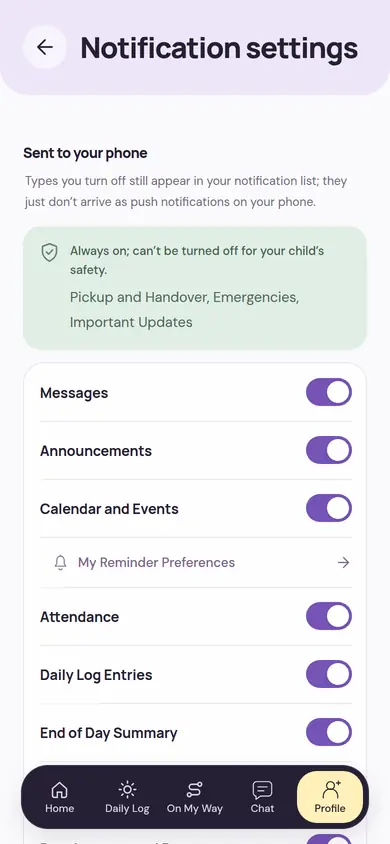
A notification appears on the phone’s lock screen, where others can see it too. So it’s kept short; the details come when you open the app, with permissions checked.
- Health information never appears in notification text.
- A notification may include your child’s name. You can turn it off in Notification Settings; then a generic text arrives.
- A notification doesn’t carry a copy of the content. Tapping it opens the related screen and your permission is checked again.
- Pickup, emergency and Important Update notifications can’t be turned off, for the child’s safety; you choose the others.
Health information: only to the right person, and only if the law allows
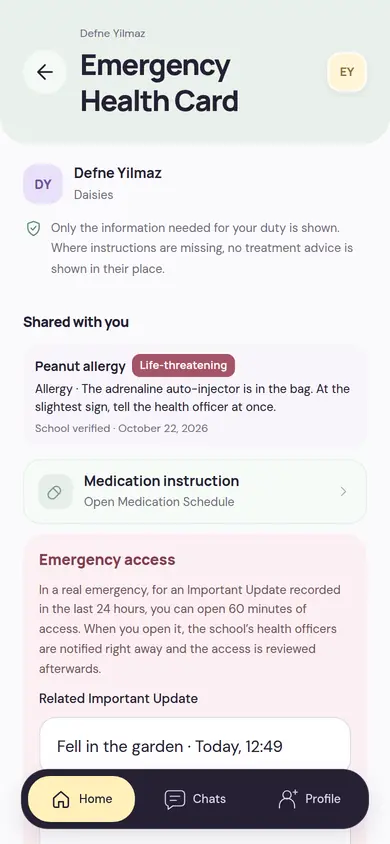
Health profiles and medication instructions don’t open until the legal policy in the school’s country has been verified. In a country that hasn’t been verified, these screens stay off; the other modules work.
- The school’s health officer keeps health records. A parent requests a change; the school reviews and applies it.
- A teacher doesn’t see the full profile, only what their duty needs: for example, the allergy of a child in their class and the instruction to follow.
- In a real emergency, a teacher can open 60 minutes of access by writing a reason. The school’s health officers are notified and the access is reviewed afterwards.
- Every opening of health records is logged as a sensitive read.
Key actions leave a trace
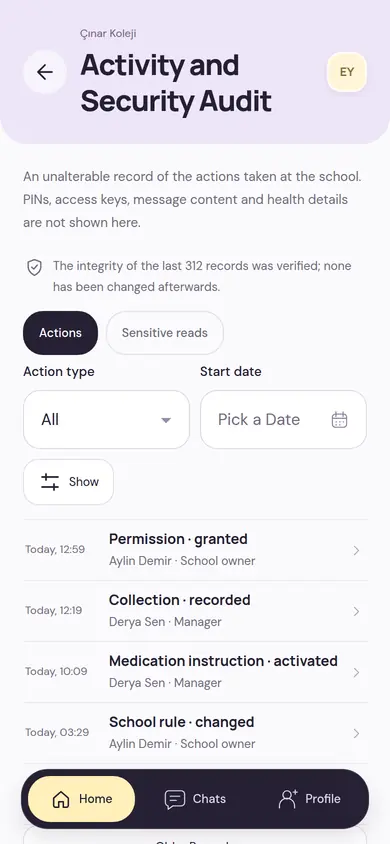
The school owner, and those they give permission to, can see who did what at the school and when on the Activity and Security Audit screen. Some actions also can’t be done on a single person’s decision.
An action record that can’t be altered
Actions such as granting permissions, collecting payments and changing rules are recorded with the person and the time. The screen checks that recent records haven’t been changed afterwards; PINs, message content and health details aren’t shown in this record.
Sensitive reads in a separate list
Every opening of sensitive records such as health information, medication records, conversations and exports is listed separately.
Message oversight, with a reason
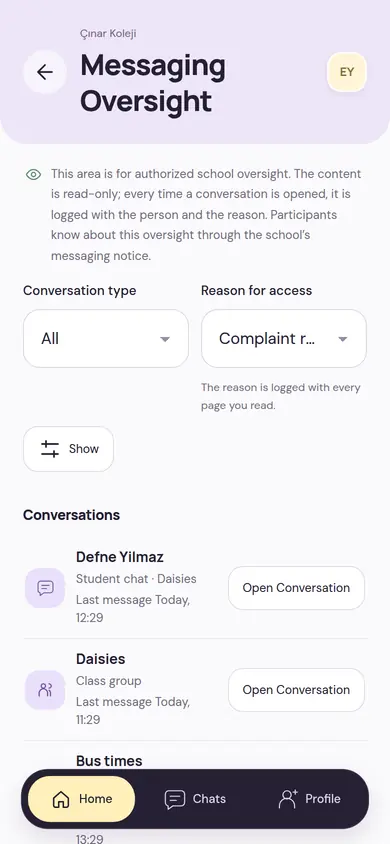
Authorized school oversight opens conversations read-only; every opening is logged with the person and the reason. Participants know about this oversight through the school’s notice.
A second person for sensitive finance work
Actions such as refunds, credit notes, fee plan changes and expenses above the approval limit wait for a second authorized person’s approval.
Important Updates are never deleted
An Important Update published for the wrong child can be withdrawn only if a reason is written and a second authorized person approves. The entry disappears from the wrong parent’s screen; the entry itself and its history remain.
No password on desktop, your phone approves
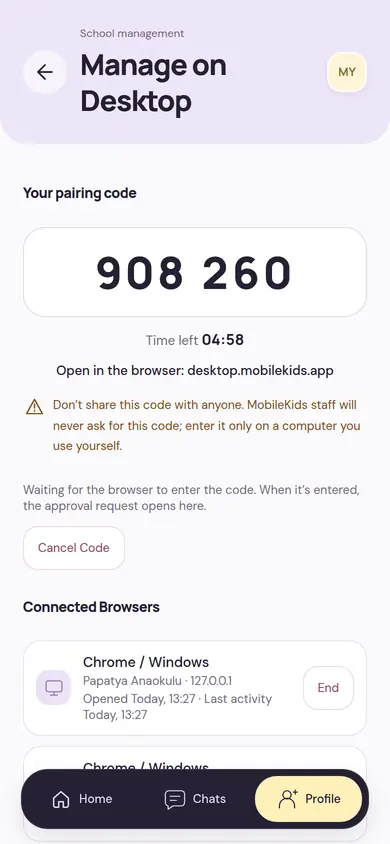
School screens also open in a browser on a computer. Sign-in uses a code generated on the phone and a pairing number chosen on the phone; there is no password to steal.
- The code is single-use and valid for a few minutes. The session doesn’t open until the two-digit number shown in the browser is chosen on the phone.
- If there is no activity, the session closes after 30 minutes, with a warning 5 minutes before. A session lasts at most 8 hours.
- At most 3 browsers stay open at once. Every new sign-in reaches you as a notification.
- You see connected browsers from your phone and can close one or all of them.
- Things that belong to the phone, like changing the PIN or phone number, aren’t done on desktop.
This site follows the same principle
The site you’re reading doesn’t collect anything from you either. Your visit isn’t tied to a profile.
- Uses no cookies.
- Has no analytics, advertising or tracking tools.
- Fonts, images and code come from this site’s own address; no request goes to another company’s server.
- There are no forms; when you want to write to us, your email app opens.
Is there a detail you’re curious about?
Write to us with your school’s questions about children’s data, or any problem you notice; let’s look at it together.