
Make recording quick, and spend your day in the classroom.
Attendance, Daily Log, Important Update, photos and pickup take a few taps. In the classroom you usually have just one hand free, and someone can call you at any moment; you write to several children at once and keep what’s unfinished as a draft.
- Free for teachers
- Join with the school’s invitation
- One account, one PIN
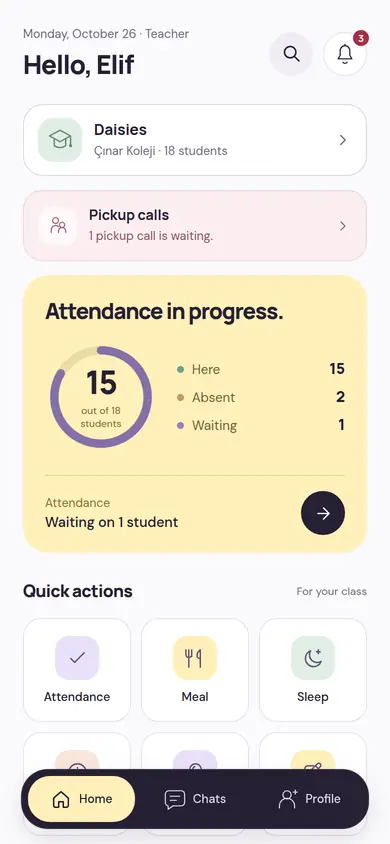
Morning: your home screen and fast attendance
Your home screen shows your class’s day: how much of the attendance is done, whether anyone is waiting at the door, what’s next. Attendance is one tap per child.
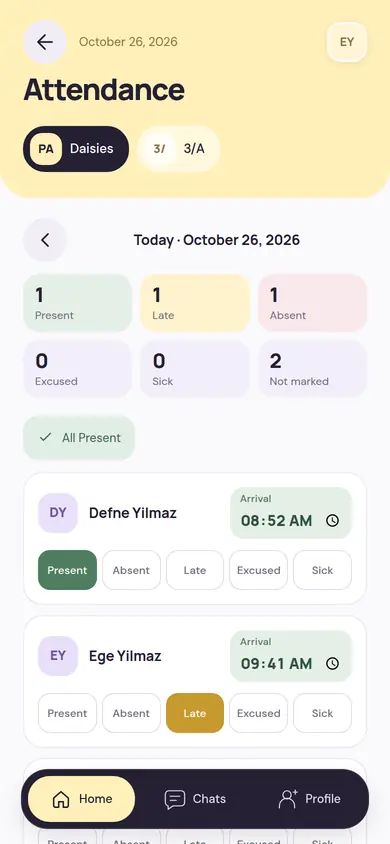
- For each child: present, absent, late, excused or sick, along with the arrival time.
- With All Present you mark the class in one tap, then change the ones that differ.
- An absence report a parent sent appears in attendance, with its reason.
- Attendance closes automatically at the time the school sets.
- If you have more than one class, you switch between them with the selector at the top.
The ring on the home screen shows how many children are here, how many are absent and how many are still expected. Pickup calls and quick actions are on the same screen: attendance, meals and sleep are one tap away.
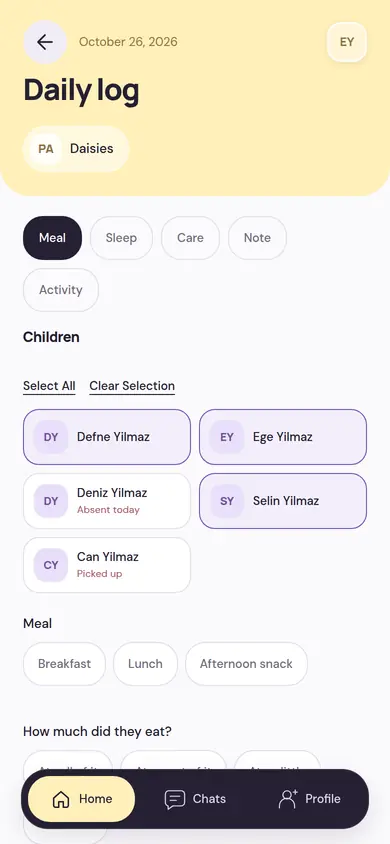
Daily Log: several children at once, in a single go
After breakfast you don’t write to each child separately. You pick the type, mark the children and enter the details once; each parent sees their own child’s record.
Choose the type
Meal, sleep, care, note or activity.
Mark the children
With Select All you choose the whole class, or you pick children one by one. A child who isn’t in that day or has been picked up is noted in the list.
Enter the details once
You pick details such as the meal and how much was eaten, then save; the record is written to the day of every child you selected.
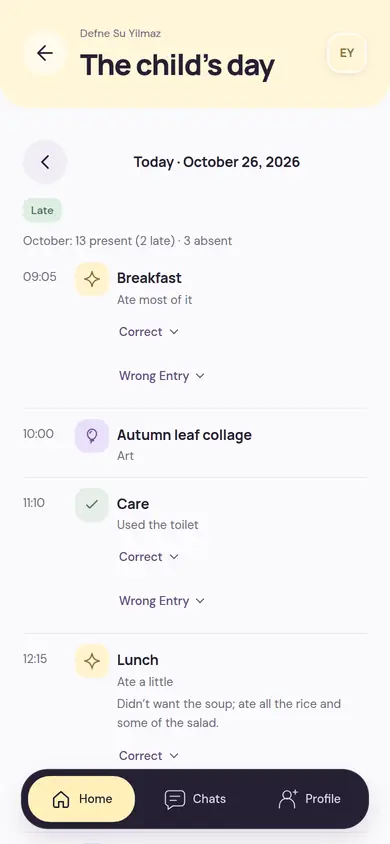
The child’s day
You open all of one child’s records in time order. You can correct a wrong record or mark it as a mistaken entry.
When something happens: Important Update and health
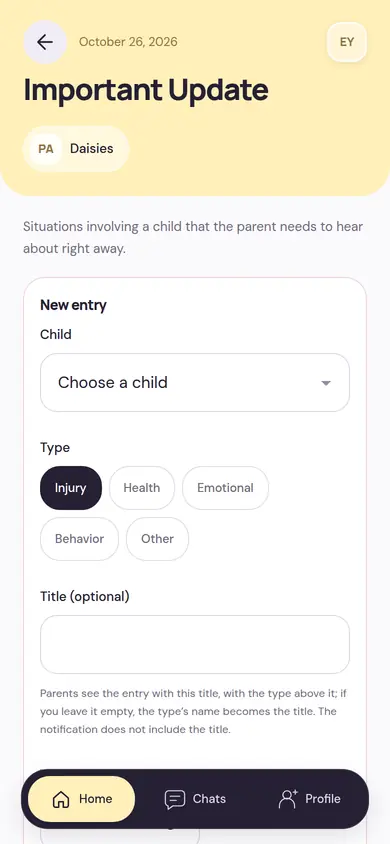
When there’s an injury, a health symptom or a hard moment the parent needs to know about right away, you write the entry in a few steps.
- You choose the child and the type: injury, health, emotional, behavior or other. You write what happened and what was done, and add up to three photos if needed.
- You ask the parent for a Seen confirmation; for some types it is always required. You can follow who has seen it in the entry.
- A published entry isn’t edited; a correction or extra information is added as a new version, and the original text stays as it is.
- A wrongly published entry isn’t deleted; a second authorized person approves the withdrawal, with a reason.
- The notification contains no details or health information; the parent sees the whole entry in the app.
Emergency Health Card
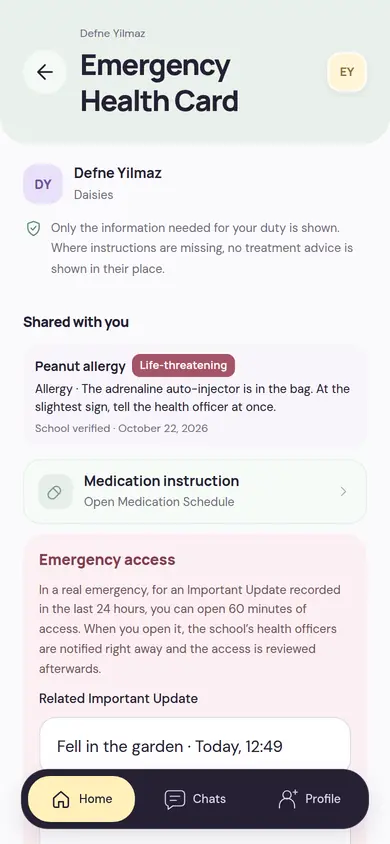
You see the health information you need for your duty, and no more; a missing instruction is never replaced with a treatment suggestion. In a real emergency, you can open 60 minutes of access for an Important Update from the last 24 hours; the school’s health officers are notified and the access is reviewed afterwards.
Medication Schedule
The day’s doses appear along with the parent’s instruction. You carry the instruction out as written and record each dose the moment you give it; if the school wants, a second person checks every dose.
Things to Watch
Your class’s health alerts, and meals on today’s menu that clash with a child’s allergy, stand out. This is a check warning, not a decision.
Health and medication screens open only once the country’s legal policy is verified.
Photos, video and End of Day
You share moments from the class with parents; when the day ends, you describe the class’s day in a short note.
Choose who it goes to
A post goes to all the parents in the class, or only to the parents of the children you tag. Videos are ready a few minutes after they upload.
You enter the tags
You tag the children in a shot by hand; there is no face recognition. If a tagged child has no sharing permission, other families don’t see that shot.
Approve, if the school wants
If the school turned on sharing review, your post becomes visible to parents after an admin approves it.
End of Day
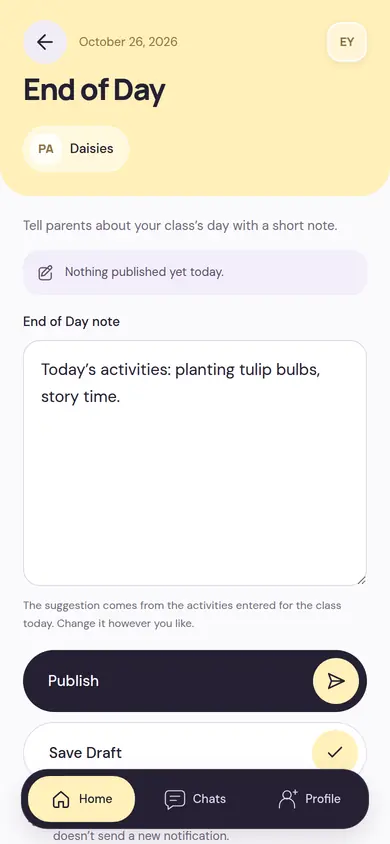
The note starts from a suggestion built from the day’s activities entered by the class. You change it as you like and publish it, or keep it as a draft.
Pickup at the door and on the bus
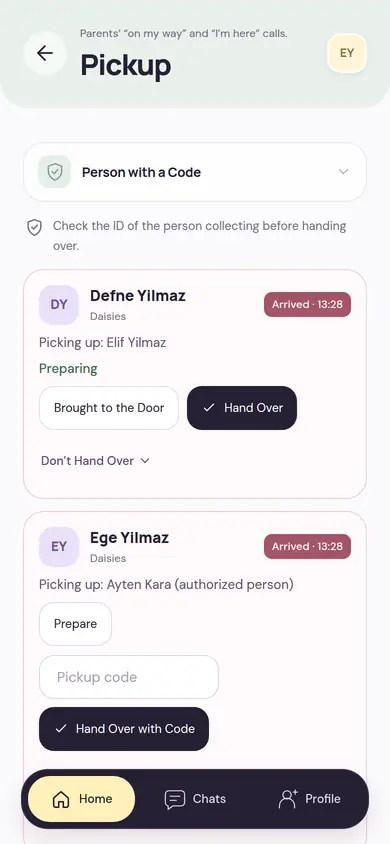
When a parent says On My Way or I’m Here, the call drops into your pickup list. You get the child ready, bring them to the door, check ID and hand them over.
Get ready
The call says who will pick the child up and about how many minutes away they are.
Bring to the door
When the child comes to the door, you mark it with Brought to the Door.
Check ID, hand over
You check the ID of the person picking up. A temporary authorized person shows a 6-digit pickup code; you enter the code and hand over with the code. If it isn’t suitable, you record the reason with Don’t Hand Over.
Transport trip
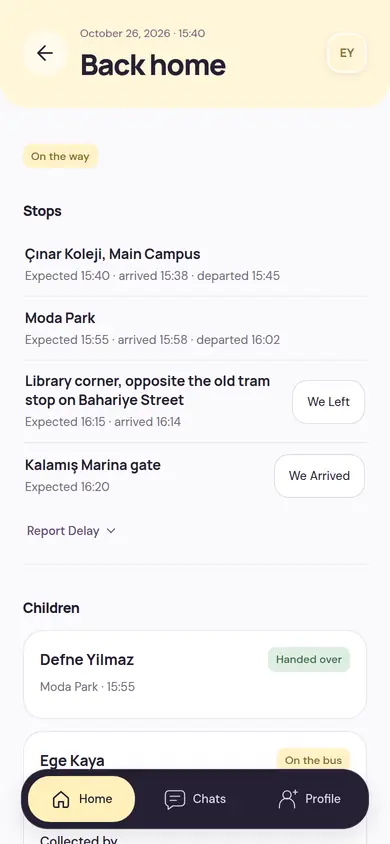
If you’re on duty on the bus, you follow the trip’s stops with their expected and actual times, mark We Left and We Arrived, and report delays. A handover at home is verified just like at the school door.
Every handover and every refusal is recorded with the information of the person picking up.
With parents: announcements, events, calendar and messages
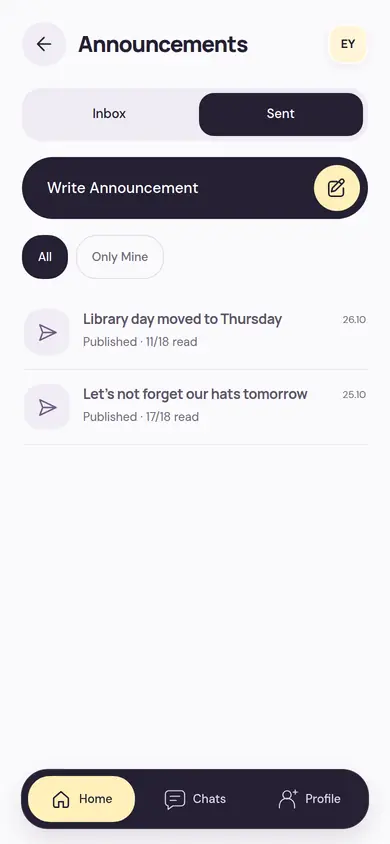
You choose what to tell your class’s parents and when; you see who has read it.
Class announcements
You send an announcement now or at a day and time you choose. The list shows how many parents have read it.
Events
You create events for trips, celebrations and meetings; you see a summary of attendance and permission replies.
Calendar
In the class agenda, the lesson plan, parent meetings and events sit day by day.
My Class
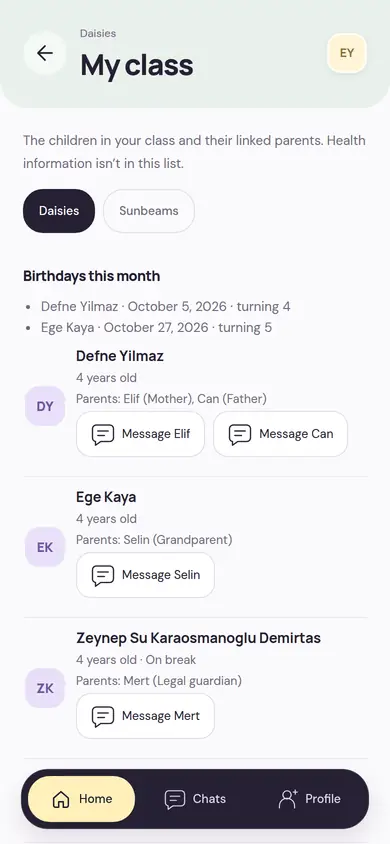
The children in the class, their linked parents and the birthdays this month. You write to any parent with one tap; health information isn’t in this list.
Messages
You message a parent about the child you look after; class groups and school channels are in the same list.
Weekly plan, observations and the term report
You plan your week and collect your observations in short notes; at the end of the term, the report starts from those observations.
Weekly Education Plan
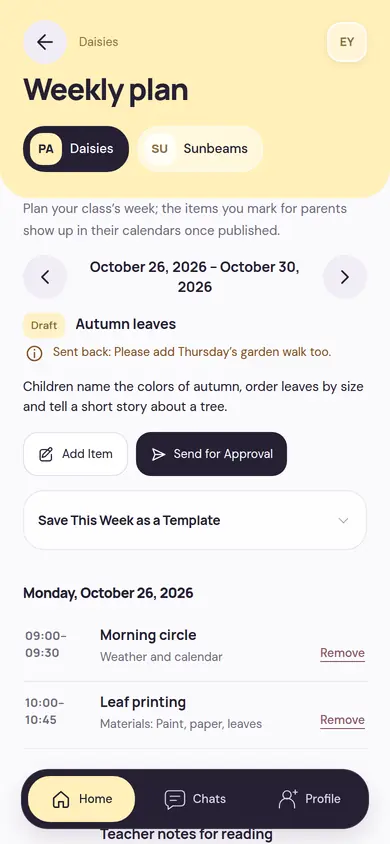
Theme, goals and activities day by day. You send the plan for approval; once published, what you marked for parents appears on their calendar. You can save a week as a template and reuse it.
Development observations
For a child you pick an area and, if you want, a level, and write a short, concrete observation; there are no comparisons or diagnoses. An observation stays within the school; you share it with the family if you wish.
Term reports
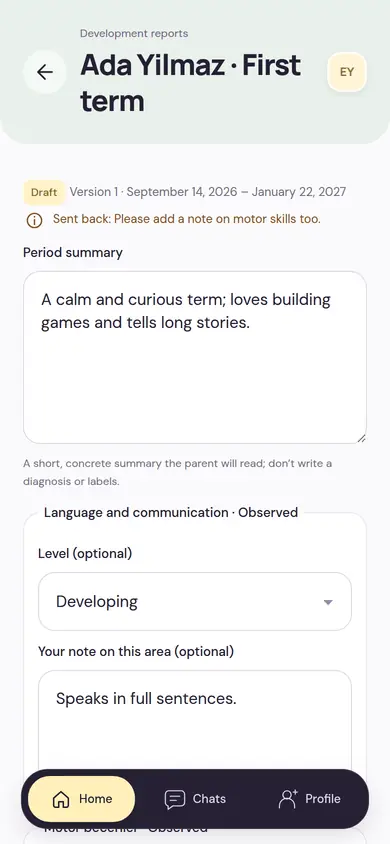
The report starts from your observations in the term; you add notes and a level to areas, and no scores are given. You follow the draft, awaiting approval and published states in the class list, and see the admin’s feedback on top of the report.
Your own work is here too
Work hours, leave, shifts, expenses and advances: you handle the work outside your classroom from the same app. An authorized person decides; you follow the status.
Work hours
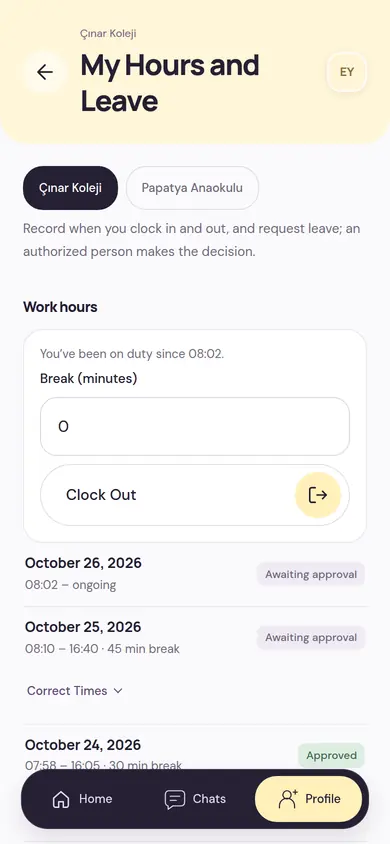
You record clocking in and out, and your break. You see the approval status of past days and can ask for a time correction if needed.
Leave
You send a leave request from the app; an authorized person decides.
Shifts
You see the published shifts for the next two weeks. To hand over a shift you can’t make, or to take an open one, you send a request; the planner decides.
Expenses and advances
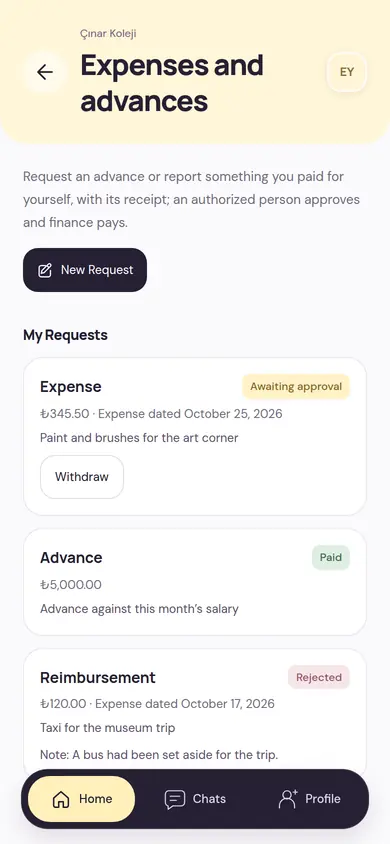
You ask for an advance, or report a purchase you paid for yourself with the receipt; an authorized person approves and finance pays.
If you work at more than one school, you see your work hours and leave separately for each school.
You join by invitation, you switch with one account
The school opens your teacher account; you only accept the invitation. MobileKids is free for teachers.
The school invites you
The school sends a teacher invitation to your phone number. The invitation is valid for 7 days; if it expires, the school sends a new one.
Verify your number, set your PIN
You verify your number with an SMS code and create your 6-digit PIN. If you’re already registered as a parent, the same PIN works.
Your classes open
When you accept the invitation, the classes the school assigned you appear on your home screen. You see only what your role and classes allow.
One account, one PIN
With the same number you can be both a teacher and a parent. From My School and Role you choose your role, school and class, and switch without signing in again.
Several classes and schools
If you look after several classes or work at more than one school, all of it is in the same account. Each school sees only its own information.
Your PIN stays with you
Your PIN works in all your roles and is never shown on any screen. If it’s entered wrongly five times, it locks for an hour.
Have your school try MobileKids
A school tries it free for 14 days; teachers and parents join by invitation. To pass it on to school management, write to us or look at the For Schools page.