
Everything in the app, module by module.
From communication to daily life, from pickup to finance and staff, every MobileKids module is here by its name in the app. Each card says what the module is for and who uses it.
- All modules in one plan
- Unused modules can be turned off
- Everyone sees only what they’re permitted to
All the modules in ten groups
The modules are grouped by the flow of the school day. Jump to a group or browse the page from top to bottom.
The labels under the cards show who uses the module: Parent, Teacher or School. Within a school, too, everyone sees only what their role, branch and class allow.
A school turns off a module it doesn’t use in the Modules section of School settings. A module that is turned off doesn’t appear on screens and cards; its data isn’t deleted.
Communication
News from school to family, questions from family to school; who it goes to and who has read it is clear.
Announcements
To the school, a branch or a class; to parents, staff or both. It can be scheduled for a later time; read status is per person, and there are no comments or likes.
ParentTeacherSchoolEmergency Announcement
Only for situations that concern children’s safety. It goes out immediately, stays at the top of the list and is repeated hourly until read; who has read it is visible person by person.
ParentSchoolWho Read It
Who has read an announcement or message, who hasn’t read it yet, and who has been sent a reminder. The detailed list is open only to the author and authorized people.
TeacherSchoolMessaging
One-to-one chat with the teacher, the class group and school channels in a single list. The school sets messaging days and hours; a message written outside hours is delivered, and its notification goes either when hours start or right away, depending on the school’s choice.
ParentTeacherSchoolMessage Inbox
A message a parent writes to the school goes to the relevant team by topic; even if the employee changes, the conversation stays with the school. If the school has set one, the parent sees the expected reply time while writing.
ParentSchoolNotifications
Everything from school in one place: unread, action needed and archive. An important item waiting for action stays at the top of the list until it is done.
ParentTeacherSchoolEvents
Trips, celebrations and meetings. The attendance reply and the parent’s permission are kept separate; if the event details change, permission is asked again, and families who haven’t replied get a reminder.
ParentTeacherSchoolCalendar
The school’s agenda: events, parent meetings, holidays and closed days. Parents choose their own reminder times.
ParentTeacherSchoolSchool Info
The parent’s school, branch, class and teachers together; with shortcuts to call, email and message the school.
Parent
Daily Life
The child’s day at school: the teacher records it in the classroom with quick taps, and parents see it during the day.
Attendance
Present, absent, late, excused or sick. Attendance closes by itself at the time the school sets; the school tracks the status of all classes branch by branch.
ParentTeacherSchoolAbsence Report
A parent reports the day they can’t come, the reason and, if wanted, a document; they can see whether the teacher has seen it. The report doesn’t replace official attendance.
ParentTeacherDaily Log
Meals, sleep, care, activities and teacher notes. A teacher writes for several children at once, the school chooses which entries are kept, and parents can look at past days too.
ParentTeacherSchoolImportant Update
An injury, health or emotional situation that must be reported to the parent right away. The parent says Seen; an entry published by mistake is withdrawn only with a second authorized person and a reason.
ParentTeacherSchoolEnd of Day
A short note telling parents about the class’s day. It starts from a suggestion built from the day’s activities, and the teacher finishes it in their own words.
ParentTeacherMeal Menu
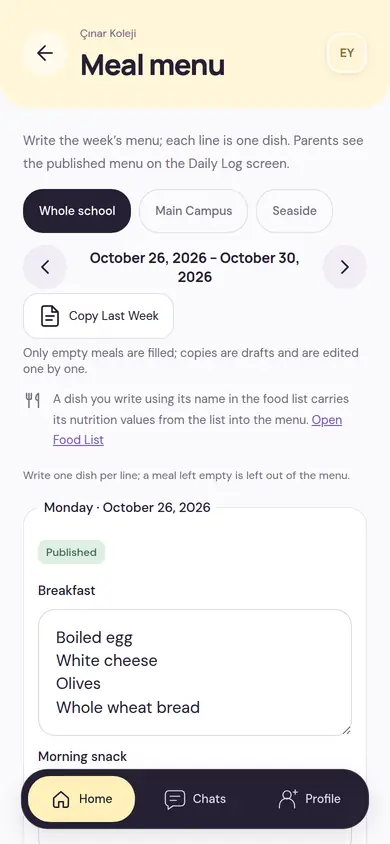
The weekly menu is written and published meal by meal; last week’s can be copied. Parents see the day’s menu and the teacher’s observation of how the child ate.
ParentTeacherSchoolFood List
The school’s dishes and nutrition values. A dish written into the menu using its name here carries its values into the menu.
SchoolWeekly Education Plan
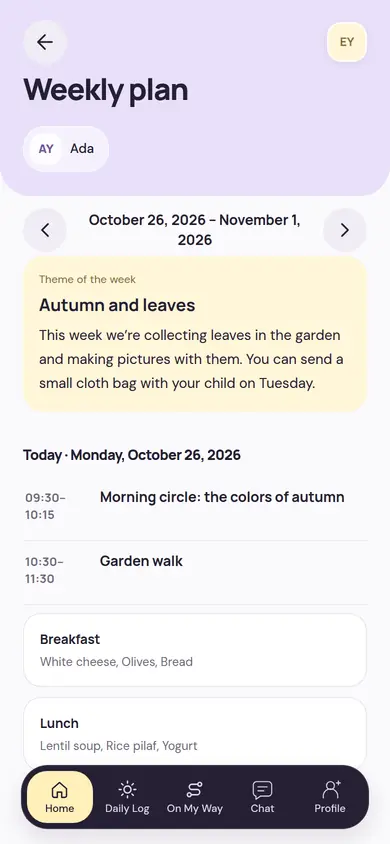
The teacher writes the week’s theme, goals and day-by-day activities; if the school wants, the plan is published with approval. Parents see the theme and the day’s times.
ParentTeacherSchoolPhotos and Videos
Shared as an album with the class or with the parents of tagged children. The teacher enters tags by hand; a parent can report an inappropriate frame to the school.
ParentTeacherSchool
The school writes once, parents see it on their own screen
The menu is written and published meal by meal on the school’s screen. In the weekly plan, parents see the week’s theme, the day’s activity times and the menu together.
- Last week’s menu is copied; the copy is a draft and is edited before publishing.
- If the school wants, weekly plans are published with manager approval.
- The published menu also appears on the parent’s Daily Log screen as Today’s Menu.
Pickup and Transport
Who a child is handed to, and how, is clear; every pickup is recorded.
Authorized Pickup People
A parent decides who can pick up their child in their place: permanent authorized people, and temporary ones with a date and time range. The school marks a permanent authorized person as checked.
ParentSchoolPickup Code and QR
A 6-digit code and QR are created for a temporary authorized person; the parent can make the code single-use if they wish. The code is shown to the parent once; the child is handed over at the door with the code or the QR.
ParentTeacherOn My Way / I’m Here
The parent says they’re on their way, who will pick up the child and in how many minutes they’ll be there; on arrival they say I’m Here. The call goes to the class teacher or the pickup team, as the school chose.
ParentTeacherSchoolPickup
Calls from parents arriving at the door appear in order. The child is handed over after an ID check, with a code or with a QR; every handover and refusal is recorded with the details of the person picking up.
TeacherSchoolMy Bus
The parent sees that the bus has set off and which stop the child boarded at, looks at the trip history and requests a stop change. Live location isn’t shared.
ParentTransport
Vehicles, routes, stops and the day’s trips. The staff member marks boarding and getting off; planned and actual times of stops are tracked.
TeacherSchool
Development and Health
No scores or comparisons in development. Health modules open once the country’s legal policy has been verified.
Development Observations
The teacher picks a development area and, optionally, a level and writes a short, concrete observation; no comparisons, no diagnosis. The observation stays within the school and is shared with the family if wanted.
ParentTeacherDevelopment Reports
A report for each child at the end of the term; it starts from the term’s observations, notes and levels are added to the areas, and no scores are given. If the school wants, it is published with approval, and parents also see earlier terms.
ParentTeacherSchoolDevelopment Framework
The development areas, skills and levels that observations are written against. The school starts with the MobileKids core framework, edits it to fit and publishes it.
SchoolHealth Profile
Allergies and instructions to follow. A parent requests a change and it shows on the record once the school reviews it; who can see the records is written out openly.
ParentSchoolDepends on country policyHealth Records
Children with health records, pending requests, medication instructions and emergency access review together. Access is authorized separately and every opening is logged.
SchoolDepends on country policyMedication Instructions
The legal guardian gives the instruction in writing; the school’s health officer approves it and chooses who will give the medication. The app doesn’t calculate doses or make suggestions.
ParentSchoolDepends on country policyMedication Schedule
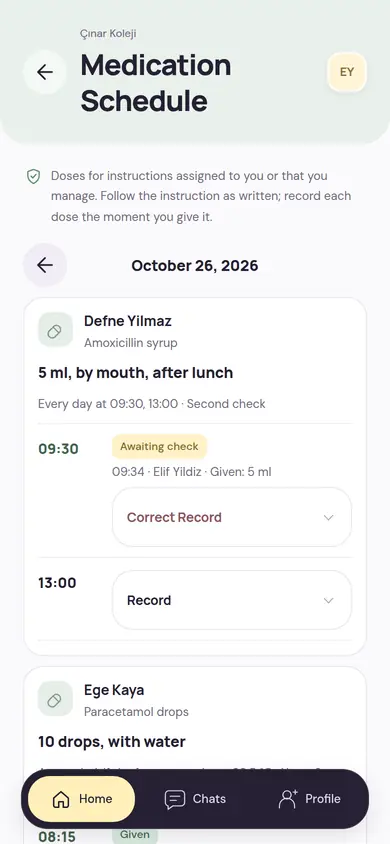
The responsible staff member sees the day’s doses together with the parent’s instruction and records each dose at the moment they give it.
TeacherSchoolDepends on country policyEmergency Health Card
The teacher is shown only the health information needed for their duty. In a real emergency, timed access is opened and reviewed by the school.
TeacherSchoolDepends on country policyThings to Watch
The class’s health alerts; dishes on today’s menu that conflict with a child’s allergy come to the front.
TeacherDepends on country policy
Limits in health are drawn from the start
Health information is the most sensitive part of children’s data. That’s why the health and medication modules work under separate rules.
- The health and medication modules open only once the country’s legal policy has been verified.
- Access to health information is authorized separately; every opening is logged.
- The app doesn’t diagnose, recommend treatment or calculate doses.
- Health information never appears in notification text.
Forms and Permissions
The approvals and information the school expects from parents; who gave permission for what is on record.
Forms
Approval, permission and information forms; questions can be text, yes-no, choice, date or number. The school sets the deadline and tracks answers child by child.
ParentSchoolEvent Permission
The parent’s permission, kept separate from the attendance reply. If the event details change, permission is asked again; a parent can take back a permission they gave.
ParentSchoolChecklists
Staff fill in the checklists the school prepares, day by day; those filled in over the last two weeks are visible.
TeacherSchoolPhoto Permissions
The legal guardian chooses whether their child’s photos can be seen by their own family and by the other families in the class; they can change their decision at any time.
ParentTerms and Permissions
The versions of the terms of use and privacy texts that were accepted, and optional communication preferences. You can continue without giving permission.
ParentTeacherSchool
Finance
The school’s pre-accounting. The app takes no card payments; it records payments received by other means.
Parent Accounts
Each payer’s charges, due dates and payments. The school decides who sees them in the app and gets reminders; refunds and credit notes wait for a second authorized person’s approval.
SchoolFee Plans
Each child’s own plan: items such as tuition, meals and transport, in installments or monthly. When the plan is activated, charges are created with their due dates; an amount change is processed with a second authorized person.
SchoolCollections
A payment received at the desk is recorded with the parent account, the cash or bank account and the method, and allocated to charges. A wrong collection isn’t deleted; it is reversed with a counter-entry.
SchoolParent Payment Report
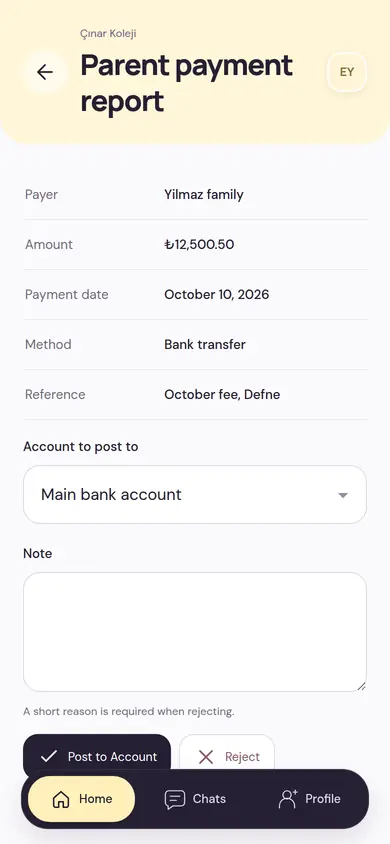
A parent reports a payment they made by bank transfer, with the payment slip; the authorized person posts it to the account or rejects it with a reason.
ParentSchoolOverdue and Reminders
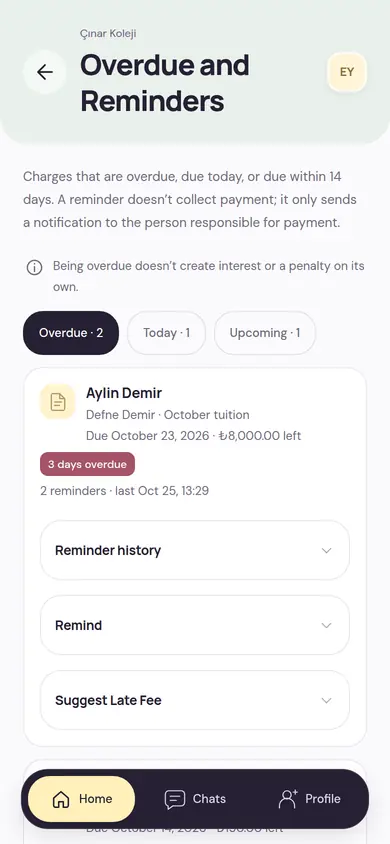
Overdue, due-today and upcoming charges. A reminder only sends a notification; being overdue doesn’t create interest or penalties by itself.
SchoolCash Box and Bank
Cash box, bank and POS accounts, transfers between accounts and cash box counts. For other currencies, the rate is entered by hand and approved by someone other than the person who entered it.
SchoolBank Statement
The CSV statement downloaded from the bank is imported and each line is matched with a recorded transaction. A month counts as reconciled when it matches the closing balance.
SchoolExpenses
Supplier invoices and expenses, with their documents. An approved expense is deducted from the account when paid; a supplier document is never shown to any parent.
SchoolRecurring Expenses
Regular expenses such as rent, internet and insurance. Each upcoming period waits; it is created when the invoice arrives or skipped with a reason.
SchoolBudget
The term budget is prepared with monthly amounts for income and expense categories; the approved budget is compared with actuals.
SchoolLoans
Bank loans and payment tables. An installment payment closes fees first, then interest, then principal.
SchoolFinance Summary
Income and expense, cash movement, open receivables and payables for the selected month; filtered by branch.
SchoolPeriod Close
No entries are made in a closed month. Corrections are written to an open month, or the month is reopened with a reason.
SchoolBulk Import
Earlier records are imported as CSV with a template. Before uploading, you see what will happen to each line; only error-free lines are written.
SchoolMy Payments
The parent sees their open balance, the next installment and the installment plan, and reports a payment they made. Card payments aren’t made in the app.
Parent
Payment is made elsewhere, the record is kept here
A parent reports a payment made by bank transfer from the app; the authorized person posts it to the account or rejects it with a reason. For an overdue charge, a reminder is a notification; it doesn’t take payment.
- A late fee is only suggested, and becomes a separate charge once a second authorized person approves it.
- Refunds, credit notes and fee plan changes wait for a second person.
- A wrong entry isn’t deleted; it is corrected with a counter-entry and leaves a trace.
Staff
From the employee record to salary. The app doesn’t calculate payroll; it records amounts.
Employee Records
Employees with their duties and work arrangements; an employee who doesn’t use the app is recorded too. Leave, shift and transport duties run through this record.
SchoolShifts
The week’s shifts are set up from a template and published. An employee sees only the published shift; to hand one over or take an open one, they send a request.
TeacherSchoolWork Time and My Leave
Employees record clock-in and clock-out, see their remaining leave and ask for leave; the authorized person decides.
TeacherSchoolWork Time Records
Employees’ clock-in and clock-out records. A record an employee writes is final once approved; correction requests wait for approval.
SchoolLeave Types
The types staff choose when asking for leave. A type that is turned off doesn’t appear in new requests; past leave stays in place.
SchoolStaff Documents
The documents required for a duty and their status. A missing or expired blocking document stops the person from being placed in that duty.
TeacherSchoolPay Information
A record of payroll amounts; the app doesn’t calculate payroll. Only the pay officer and the employee themselves see it.
SchoolSalaries
The month’s salaries are entered person by person and sent to finance as an expense; paid advances are deducted from the salary.
SchoolExpenses and Advances
Employees ask for an advance or report spending out of pocket with the receipt; the authorized person approves, finance pays.
TeacherSchool
Operations
The school’s back office: admissions, supplies, maintenance, faults and transport incidents.
Pre-registration
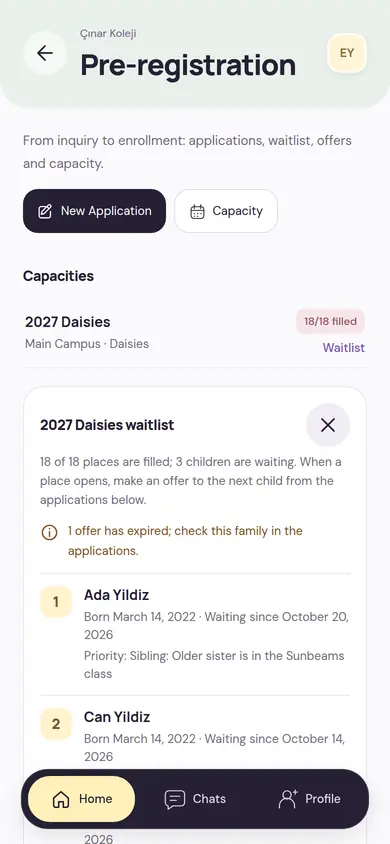
From the interview to enrollment: applications, quota, waiting list and offers. The service contract signed outside the app is recorded too.
SchoolStock
The branch’s supplies and how much is where; receipts, issues and waste are separate movements. Items running low or near their expiry date come to the front.
SchoolStock Count
Count what’s on the shelf and write it down; when you finish, differences against the ledger appear. A difference is posted once the person with stock adjustment permission approves it.
SchoolSupply Requests
A teacher asks for the supplies needed with an estimated amount; the authorized person approves and places the order, and the items are received when they arrive.
TeacherSchoolAssets
The branch’s equipment, maintenance schedule and history. When maintenance is due, a task lands in the work queue.
SchoolFaults and Job Reports
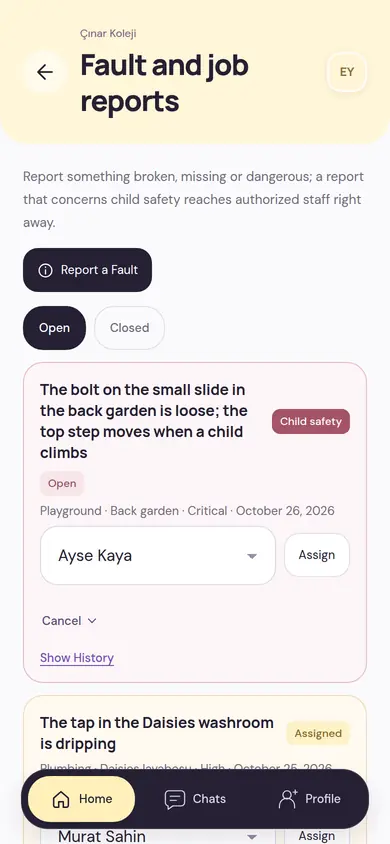
Something broken, missing or dangerous is reported and assigned to the person responsible. A report concerning child safety reaches authorized people right away.
TeacherSchoolTasks and Approvals
Tasks that fall to you and decisions waiting on you are in one queue; the soonest due stays on top.
SchoolTransport Incidents
A breakdown, delay, accident, health situation or a problem at handover is recorded; high and urgent incidents are reported to those responsible right away. This record isn’t shown to parents.
SchoolTransport Change
A parent’s stop or transport change request arrives with a date range and a note; the change becomes final with the school’s approval.
ParentSchool
The school’s back office is in the same place too
Quota and waiting list, a hazard noticed on the playground, a supply running low: all tracked with the person responsible and the history.
- On the waiting list, priority is given with a reason; no score is calculated from personal data.
- A fault concerning child safety is critical regardless of the priority chosen.
- Pending approvals, orders and maintenance times land in the responsible person’s work queue.
Management and Audit
Structure, people, permissions and rules; key actions leave a trace.
Branches and Classes
The school’s branches and the classes in each branch, with their levels and capacities.
SchoolTeachers and Staff
The people at the school, invitations and class assignments. Permissions are given by role; they can be limited to a branch or a class.
SchoolStudents and Parents
Students class by class, linked parents and pending invitations. The student card also includes the legal guardian and emergency contacts.
SchoolSchool Verification
The school has its legal entity verified by the MobileKids team, with its documents. A verified school can send invitations to real numbers.
SchoolSubscription and Trial
The plan’s status, remaining trial days and capacity. Only the school owner manages the subscription; details are on the Pricing page.
SchoolReports
Period reports on topics such as attendance, daily log, finance and transport, next to the previous period; CSV, XLSX or PDF. Scheduled delivery can be set up; no child names appear.
SchoolActivity and Security Audit
An unalterable record of who did what and when. PINs, message content and health details aren’t shown here.
SchoolMessaging Oversight
For authorized school oversight, conversations open read-only; every opening is logged with the person and the reason. Participants know about this oversight.
SchoolPost Review
If the school wants, teacher posts are published with manager approval. Photos reported by parents are reviewed here too.
SchoolNotification Rules
The defaults for notifications going to parents, teachers and the team, and quiet hours. Pickup, emergency announcement and Important Update notifications can’t be turned off.
SchoolNotification Delivery Tracking
Notifications sent by the school in recent days and their results. Sent means it reached the device; it doesn’t mean it was read.
SchoolModules
A school turns off a module it doesn’t use. A module that is turned off doesn’t appear on screens and cards; its data isn’t deleted.
SchoolSchool Rules
The time attendance closes, messaging hours and the expected reply time, who the pickup call goes to, and which posts and reports need approval.
SchoolSchool Ownership
The owner transfers the school to a member of the school; the recipient accepts from their own session. The previous owner stays on as a manager.
SchoolManage on Desktop
School screens in a computer browser, in a wide layout with a side menu. No password; sign-in is done with your phone’s approval. How it works
School
Account
One phone number is one person: a single account, a single PIN, more than one role.
My School and Role
The same person can be a parent, a teacher and a school manager. They switch their role and school without signing in again; each link appears in its own area.
ParentTeacherSchoolAccount Security
The 6-digit PIN works in all roles and is never shown on any screen. It locks for 1 hour after 5 wrong tries. There is also a number change, and account recovery for when you can’t reach your number.
ParentTeacherSchoolMy Invitations
Parent, teacher or staff invitations from schools. An invitation arrives at your phone number and is valid for 7 days; you accept or decline from here.
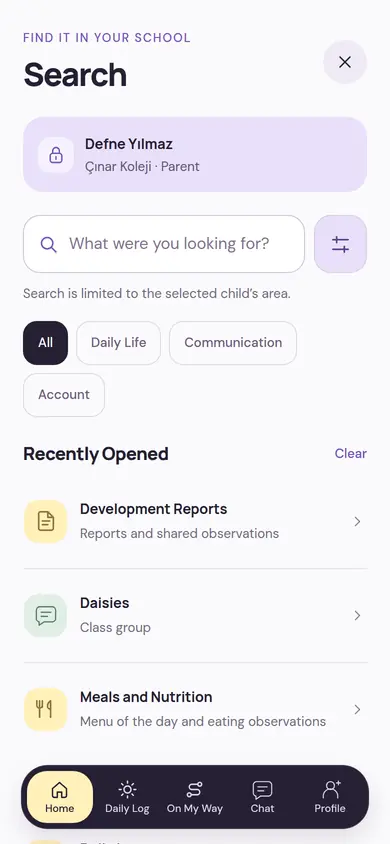
ParentTeacherSchoolSearch
Search across the Daily Life, Communication and Account modules. Results are limited to the selected child’s, class’s or school’s area.
ParentTeacherSchoolNotification Settings
The person chooses which notifications reach their phone; pickup and emergency notifications always stay on. A parent can turn off their child’s name in notification text.
ParentTeacherSchoolMy Child
Linked children and, for each child, shortcuts to the daily log, meal menu, development reports and photos.
Parent
What we deliberately left out
MobileKids is for the communication of the school day and the running of the school. We left some things out, either because they are another tool’s job or because they don’t fit children’s data.
- No homework, exams, grades or lesson content; MobileKids isn’t a learning management system.
- No card payments in the app. A parent reports a payment made another way, and the school records it.
- No official invoices, e-archive or payroll declaration. Pre-accounting records are kept; payroll isn’t calculated.
- No e-signature or contract drafting; a contract signed elsewhere is recorded with its file.
- No face recognition, age analysis or AI scanning of photos; the teacher enters tags by hand.
- No live location tracking for transport.
- No ads, analytics or tracking tools.
All modules in one plan, free for 14 days
Write your school’s name and the number of branches and classes; let’s talk through which modules to start with and the setup steps.