
Your child’s school day, at a glance.
What did they eat, did they nap, what did they do today? Is there an announcement from school, or a permission waiting for your approval? MobileKids gathers these in a calm, organized place on your phone; you see what you’re wondering about without having to ask.
- Free for parents
- No ads, analytics or tracking
- Coming soon to the App Store and Google Play
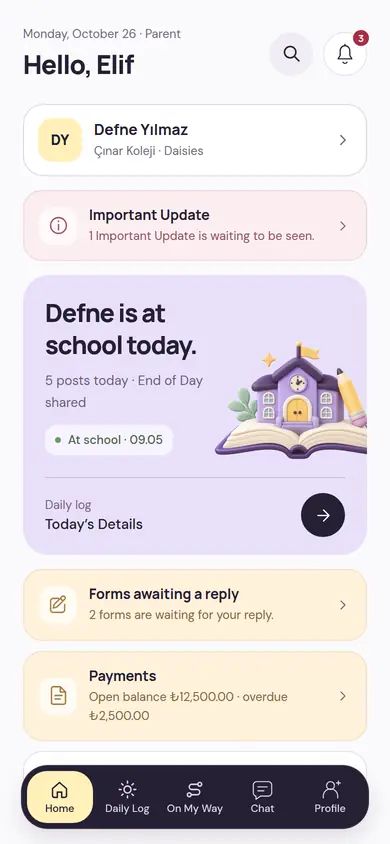
What matters first when you open the app
The home screen summarizes your child’s day. If something is waiting for your reply, it says so clearly; the rest waits calmly until you look.
- Whether your child is at school or absent, with the attendance time.
- How many posts there are today and whether End of Day has been shared.
- Important Updates you’re expected to see, forms waiting for a reply and open payments.
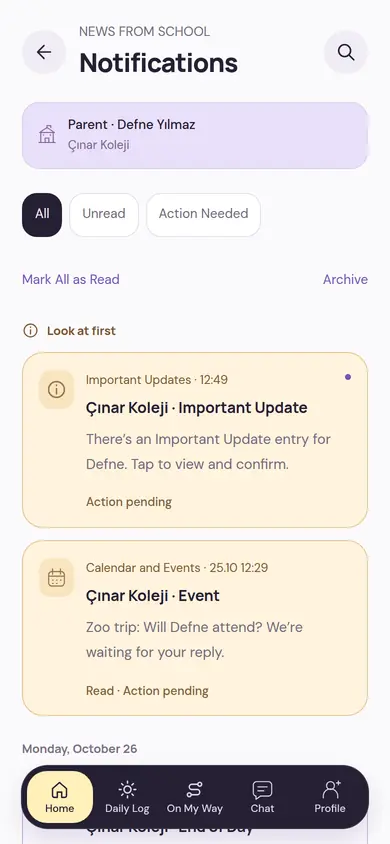
- In notifications, items waiting for action stay at the top; you can also filter unread ones and ones that need action.
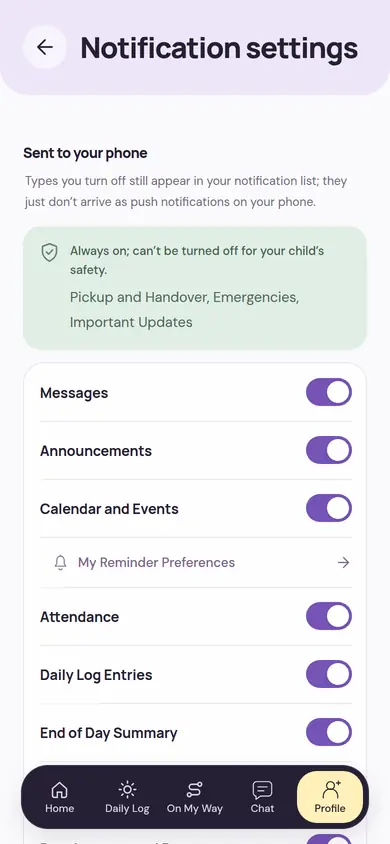
Notifications are your setting
You choose which notifications reach your phone; the types you turn off still appear in your notification list. During quiet hours, routine notifications wait. Pickup, emergency and Important Update notifications are always on for your child’s safety.
Health information never appears in a notification text. If you like, your child’s name doesn’t either; “Your child” is written instead.
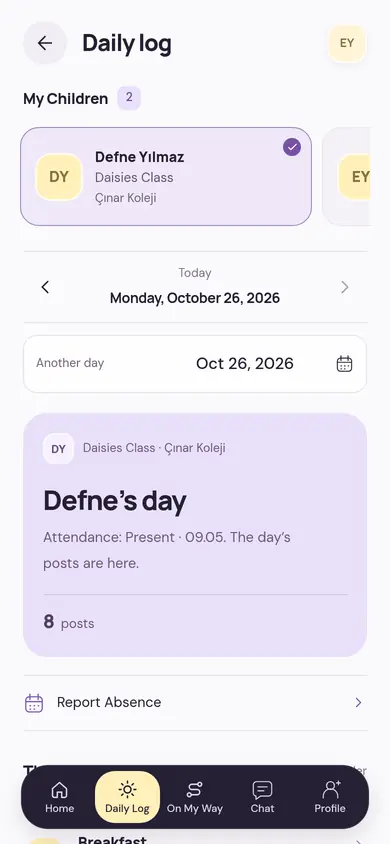
Daily Log: your child’s day, in order
The teacher enters short records during the day; you see them in time order. To go back to a past day, just choose that day from the calendar.
-
09:05Arrival
At school
When attendance is taken, you see that your child has arrived and what time they came.
-
09:30Breakfast
Meals
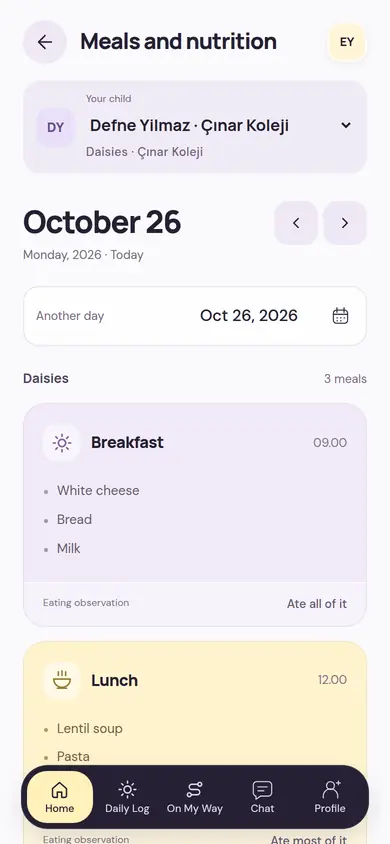
The day’s menu meal by meal; next to it, how much they ate according to the teacher’s observation.
-
11:00In class
Activities and notes
Activities done during the day and short notes the teacher writes to you.
-
13:00Rest
Sleep and care
Sleep and care records, with the teacher’s explanation when needed.
-
15:00Sharing
Photos and videos
Moments shared from the class stay in albums. The teacher tags the children by hand; there is no face recognition. Whether other families in the class can see shots that include your child is decided by your child’s legal guardian.
-
16:00End of Day
End of Day
The class’s day closes with a short note from the teacher; you have something to talk about with your child in the evening.
Let them know if your child won’t come. With Report Absence in the Daily Log, you send the date and reason, and a note or document if you like, to the teacher, and you can follow whether they’ve seen it. This report doesn’t replace the official attendance kept by the teacher.
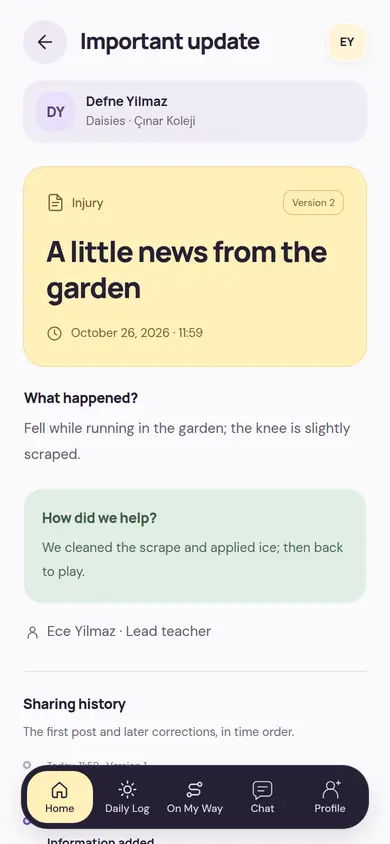
Important Update: when there’s something you need to know
When there’s a minor injury, a health sign or a hard moment, the teacher writes it as an Important Update. You see what happened, how it was handled and who wrote the record.
You read it
What happened, what was done and who wrote it, on one screen.
You say Seen
When you’ve read the description, you tap Seen, and this is passed to the school. Opening the notification or the page alone doesn’t count as Seen.
You follow changes
A published record isn’t changed; corrections and extra information are added as a new version. They all stay in order in the sharing history.
A notification doesn’t include details or health information; you read the whole record in the app. A record published by mistake can be withdrawn only with a second authorized person’s approval and a reason.
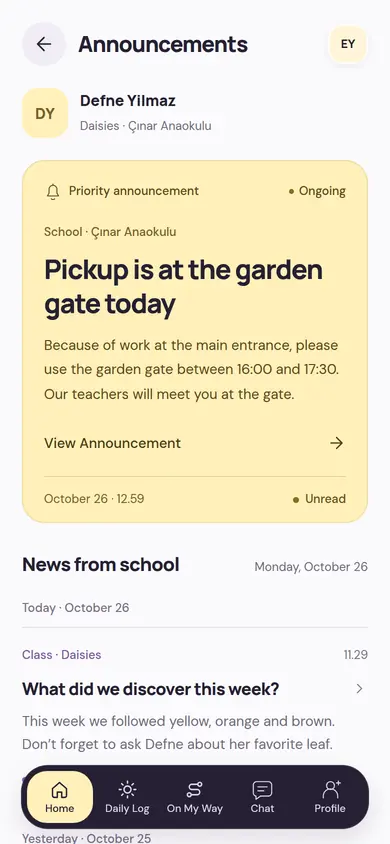
Announcements, events and the school calendar
Everything from school in one place: announcements, trips and celebrations, forms waiting for a signature and the week’s plan.
Announcements
Announcements from the school and the class in one list. The sender sees who has read them.
Emergency announcement
An emergency announcement is repeated every hour until you read it.
Event reply and parent permission
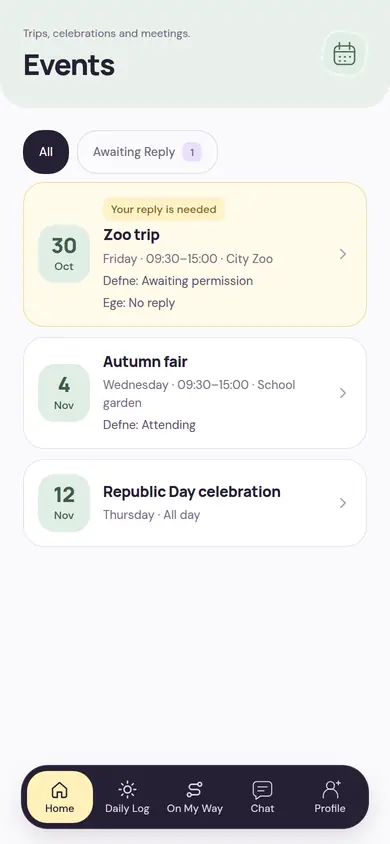
You give your attendance reply for trips and celebrations. If permission is needed, you read the text and approve; permission is only for that event and that version of the text, and you are asked again if the plan changes.
Forms
Approval, information and permission forms the school expects are listed with their reply-by date.
Calendar
The school agenda shows the coming weeks; you choose when reminders arrive.
Weekly plan and meal menu
The week’s theme, the day’s activity times and the menu together; you know in advance what’s on the table.
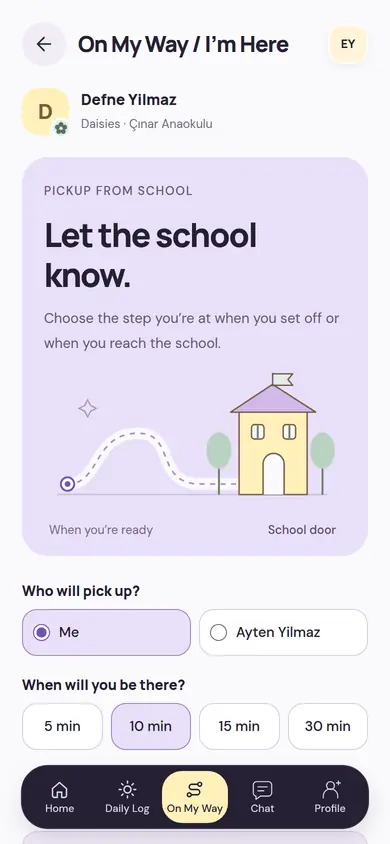
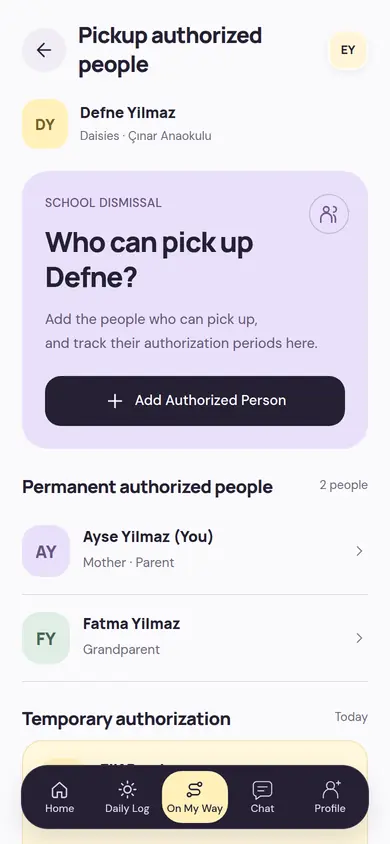
Picking up from school: authorized people, On My Way and the pickup code
You decide who can pick up your child, and you let the school know when you set off. The handover is always made by a school staff member who checks ID.
Decide who can pick up
The school verifies a permanent authorized person’s ID once. You give temporary authorization with a day and time range; a 6-digit pickup code and QR are created for that person, single-use if you like.
Say On My Way when you set off
You choose who will pick up the child and in how many minutes they’ll be there: 5, 10, 15 or 30. Your call lands in the school’s pickup list and your child is prepared.
Say I’m Here at the door
The staff member checks the ID of the person collecting; a temporary authorized person shows the code or QR. The handover is recorded.
Pickup authorization doesn’t replace the ID check the school makes at handover.
Writing with the teacher, the class and the school
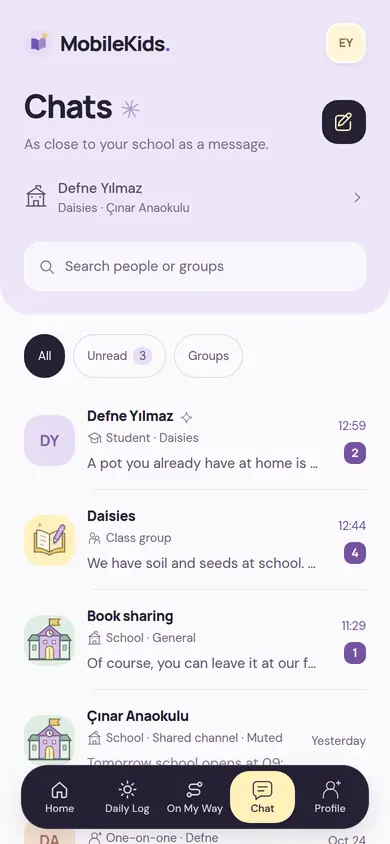
Your chats in one list: with your child’s teacher, with the class group and with the school’s message inbox, split by topic.
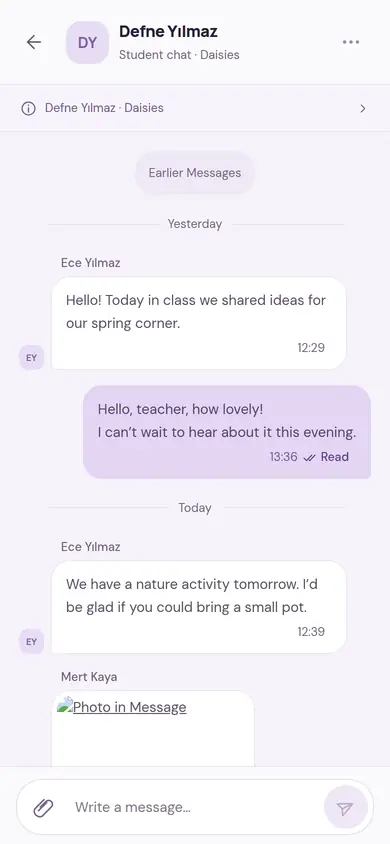
With the teacher
A conversation about your child, with the class teacher. You see read and sent status; you can attach a photo, PDF or document.
Class group and school channels
The shared conversations of the class and the school are in the same list. Even if you mute a chat, emergency and important notifications come through.
Message the School
You write your message to the school’s inbox with its topic. You see the school’s contact hours and, if the school has set one, the expected reply time up front; the conversation stays with the school even if staff change.
Only those in the conversation see it
A conversation and its attachments are visible only to the members of that chat; photos in messages aren’t moved to the photo gallery.
Development reports and health information
At the end of the period you read the teacher’s report; you keep your child’s health information up to date together with the school.
Development reports
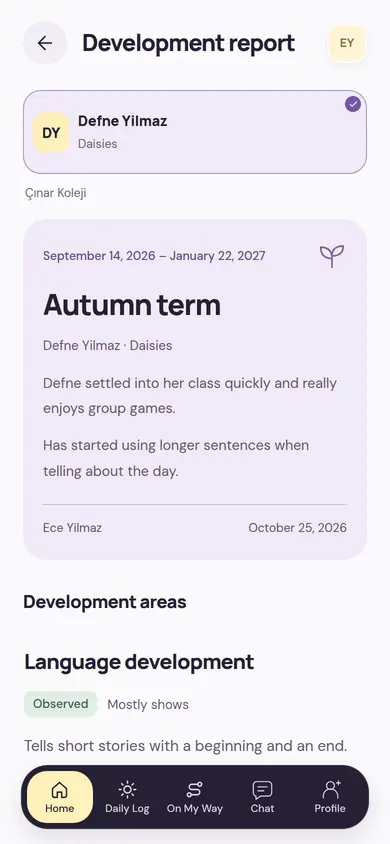
The report comes with the teacher’s period summary and observations in the development areas; no scores are given. Reports from earlier periods and observations the teacher has shared with you are here too.
Health profile
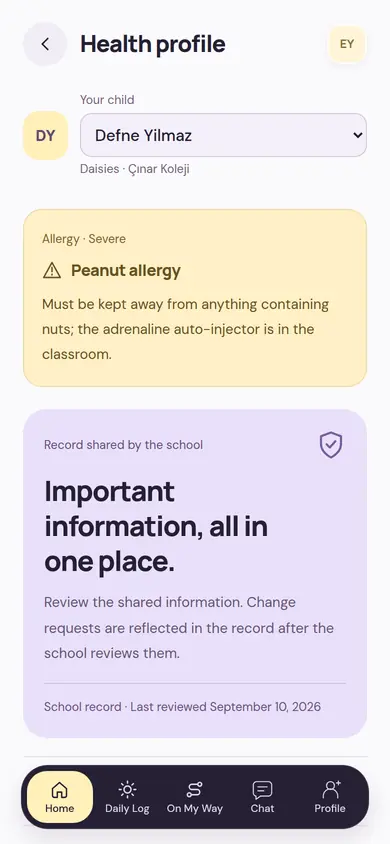
The health record approved by the school: allergies and instructions to follow. If you want a change, you send a request; after the school reviews it, it is reflected in the record.
Medication instruction
The child’s legal guardian gives the instruction as the doctor wrote it. After the school’s health officer approves it, the staff member on duty administers it and records each dose. The app doesn’t calculate doses or make recommendations.
Health and medication screens open only when the country’s legal policy is verified; where it isn’t, they don’t appear.
Payments and transport
Money and travel with the school are in the same place too. You see your balance, the next installment and what step the school bus is at without asking.
Account summary
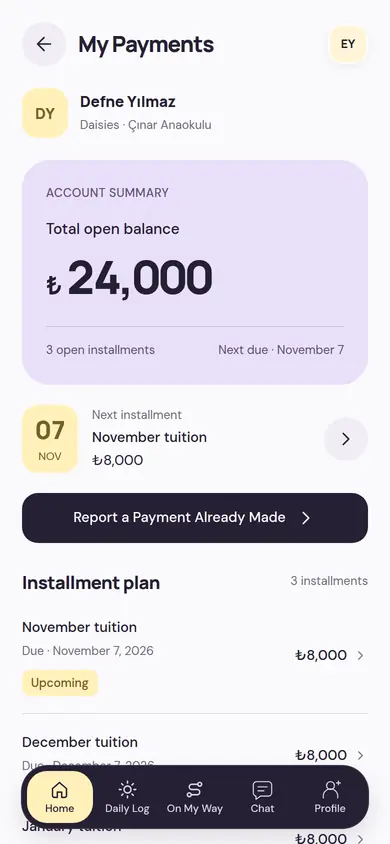
Total open balance, the next installment and the installment plan; any overdue amount is shown separately.
Payment report
You report a payment you made outside the school, such as a bank transfer, to the school with its receipt; when the school confirms it, it’s applied to the related charge. No card payments are taken in the app.
Transport
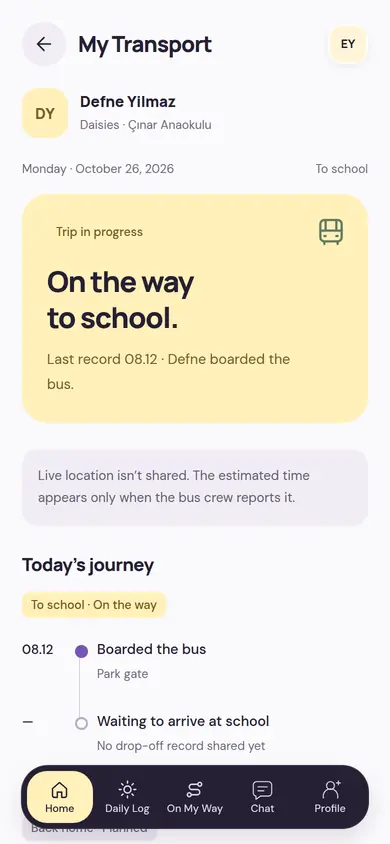
You see that your child boarded the school bus, got off at school, or was handed over at the stop. Live location isn’t shared; an estimated time appears only when the bus team reports it.
Change request
If the stop or the bus days are going to change, you send your request to the school; the change is final with the school’s approval.
How you join
The school sets up child information and the school connection; you only accept your invitation. That way everyone sees only their own child’s day.
The school invites you
The school adds your phone number as your child’s parent; a parent who is the legal guardian is marked separately.
You verify your number
You enter your phone number and confirm it’s yours with the code that arrives by SMS.
You create your PIN
You set a personal 6-digit PIN for future sign-ins. A PIN entered wrongly five times locks for an hour.
You accept the invitation
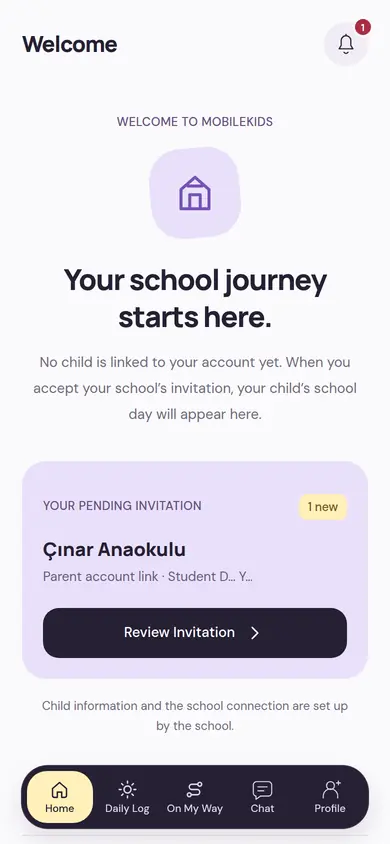
You review your pending invitation; when you accept, your child’s school day appears on your home screen.
- If you have more than one child, they’re all in the same account; you move from child to child with the selector at the top.
- If your children are at different schools, you continue with the same account; each school sees only its own information.
- If you’re a teacher or school admin, you switch roles with the same number and the same PIN.
- You see the version of the terms of use and privacy text you accepted under Terms and Permissions; promotional messages are optional.
- MobileKids is free for parents; the school pays for the subscription.
Isn’t your school using MobileKids yet?
You can tell your school about us. If the school management writes to us, we’ll explain how to start the 14-day free trial.