
Everything your school does, in one place.
For school owners, principals and the admin team: branches and classes, staff and permissions, students and parents, communication, finance and operations. Everyone sees only what their role allows; key actions leave a record.
- 14-day free trial
- One plan, all modules
- Free for parents and teachers
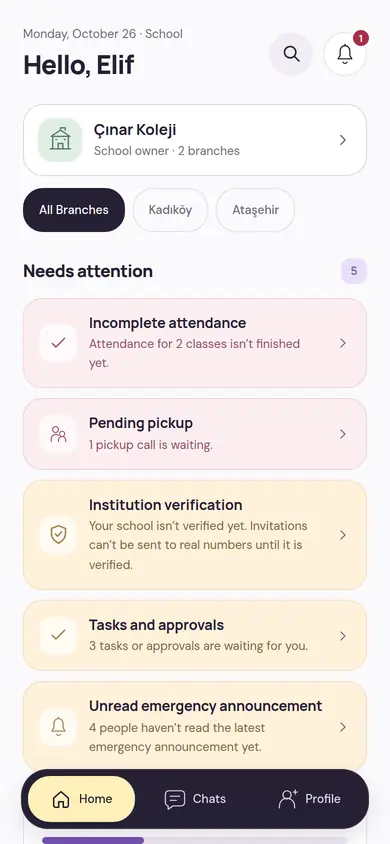
Where the day stands, on the first screen
The school home screen is the first place to look in the morning. It shows unfinished work, decisions waiting and your school’s day; you look at all branches or a single branch.
Needs attention
Unfinished attendance, pending pickups, school verification, tasks and approvals, people who haven’t read the latest emergency announcement. Each line takes you to the related screen.
Your school today
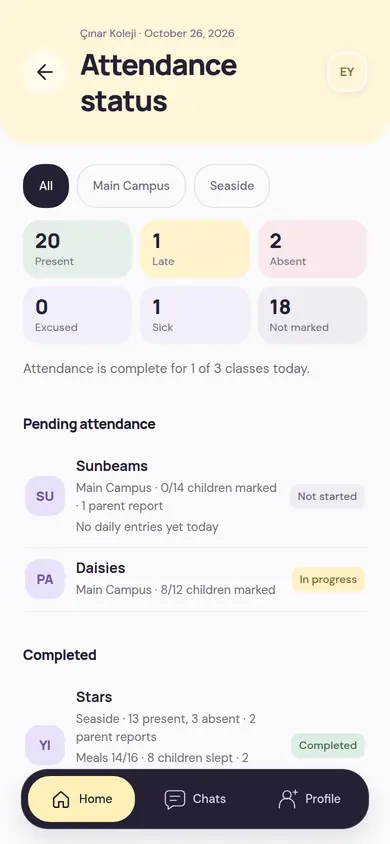
Which classes have finished attendance and which are still going shows up branch by branch. Open applications, overdue receivables and those due within seven days are in today’s figures too.
Setup Steps
In a new school, the next step stays on the home screen: from verification to the fee plan. You can skip a step for now and come back to it later.
Tasks and approvals
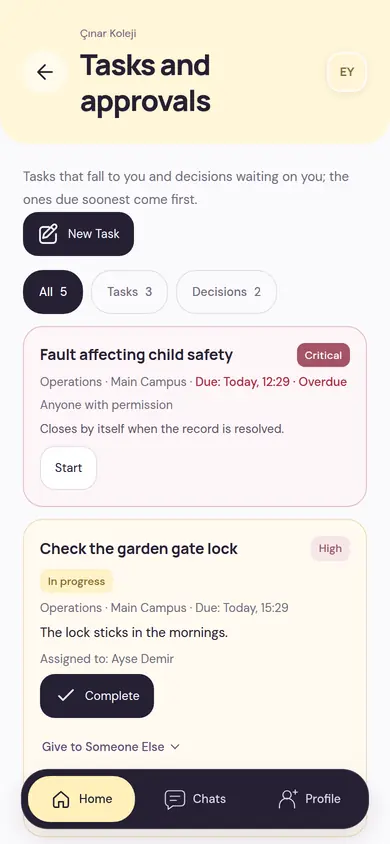
Tasks that fall to you and requests waiting for your decision are in one queue, with the soonest due on top. You hand a task to someone else or close it as done.
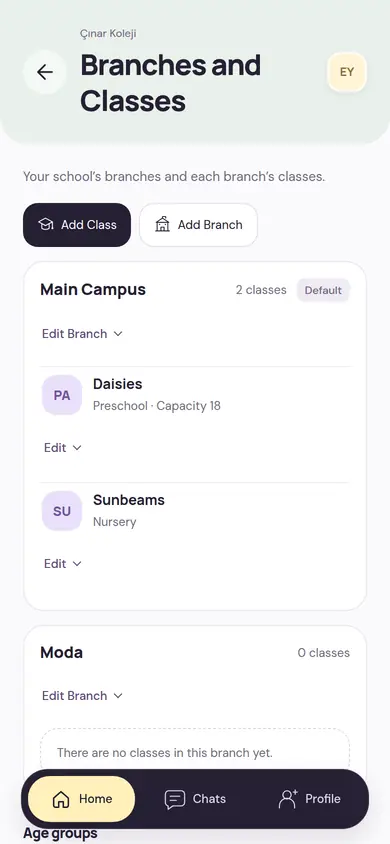
School, branch, class; everyone within their own permissions
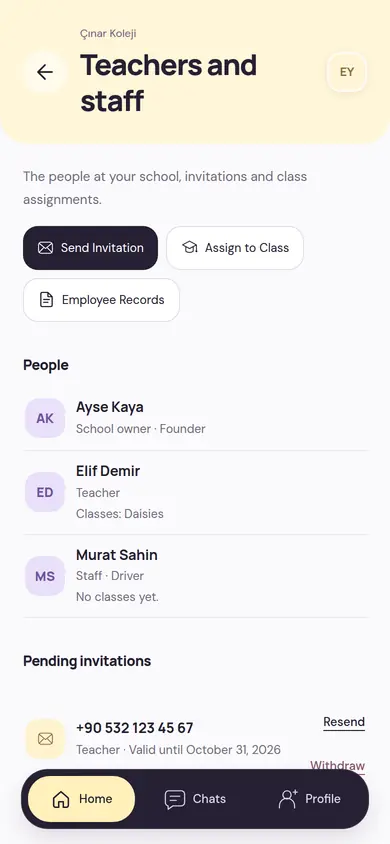
A school is divided into branches and branches into classes. People are invited by phone number; each permission is granted so that it applies to the whole school, one branch or a single class.
School owner
The person who first created the school. Manages the subscription; some rights belong only to them. They can transfer ownership to another person at the school.
Manager
Has access to all branches and works only with the permissions given to them: finance, staff, communication or all of them.
Teacher
Already has the permissions needed in the classes they’re assigned to. For work outside their class, permission is given separately.
Staff
Admin team, drivers, kitchen or health staff. Works in selected branches, only with the permissions given.
Invitations, assignments and permissions
- Teachers, managers and staff are invited by mobile phone number. The invitation is valid for 7 days; the person signs in with their own number and accepts it.
- Teachers are assigned to classes as lead teacher, assistant teacher or support.
- Each permission applies where you choose: the whole school, a branch or a class. You can set an end day if you like.
- Classes get a level and a capacity; branches get an address and phone. Branches and classes that empty out are archived.
- A suspended person can’t act at the school. When a person leaves the school, their permissions and assignments close at the same time; past records stay in place.
Students, parents and the student card
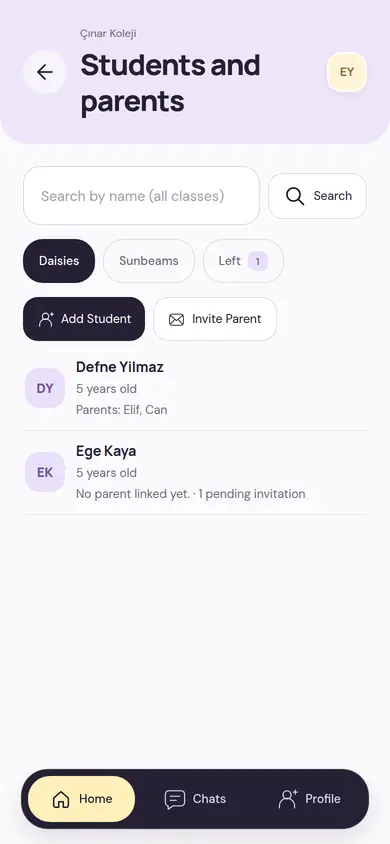
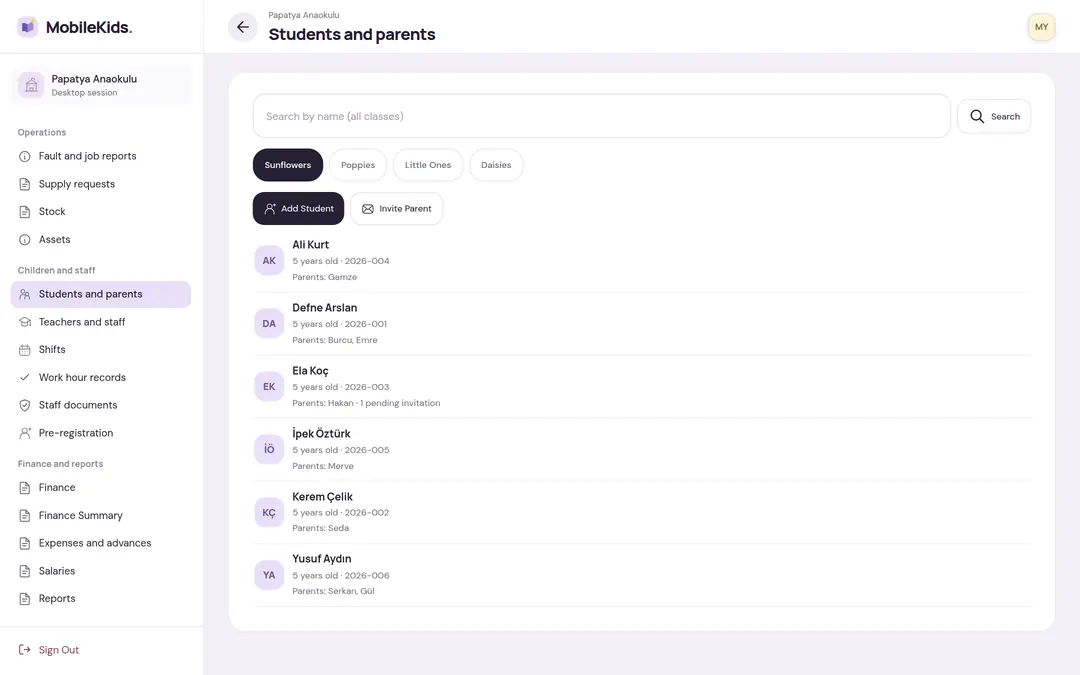
Every child is in a class, and every parent is linked to the child with their own number. You decide parent by parent what each one sees.
- You add a student with first name, last name, date of birth and class; student number and photo are optional. If the class is at capacity, an authorized person adds them by writing a reason.
- You invite a parent for a child by phone number; you mark the relationship and whether they are a legal guardian.
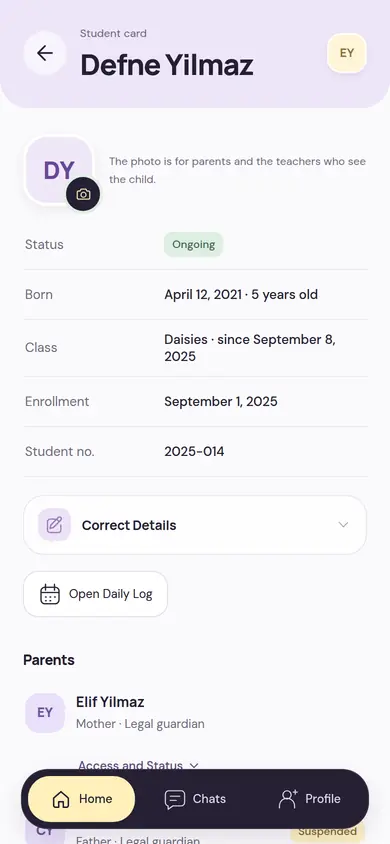
- The student card has the status, date of birth, class, enrollment details, parents and emergency contacts together.
- Each parent’s access is separate: whether they see the daily log, health information, photos and development, whether they can pick up the child, whether they can grant pickup authorization.
- In cases such as custody or a court order, a parent link is suspended or ended. Every change is logged.
- The cards and class history of children who graduate or leave stay in the Left section.
You set the rules of communication
From announcements to messages, from notifications to posts, the school decides who gets what and at which hours. A person’s own notification setting always comes first.
Announcements and Emergency Announcements
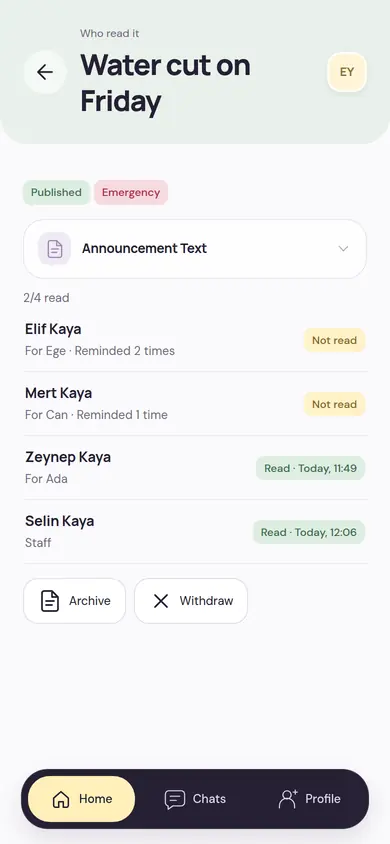
To the whole school, a branch or a class; to parents, staff or everyone. An emergency announcement is repeated hourly until read; you see who has read it, person by person.
Message Inbox
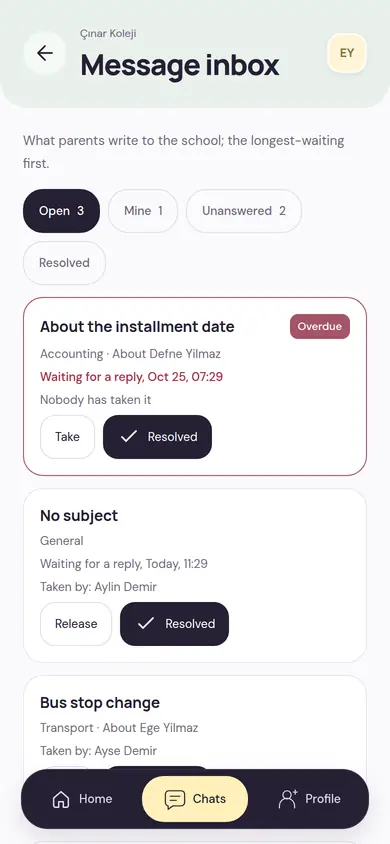
Parents write to the school by choosing a topic: accounting, admissions, transport or general. You assign people to a topic; someone takes a message, and it closes when resolved. Messaging hours and the reply time shown to parents are your rules.
Notification rules and delivery tracking
You set which notification goes to whom, and at which hours. Pickup, emergency announcement and Important Update notifications can’t be turned off. Delivery tracking shows the outcome of notifications sent in recent days.
Post Review
If you like, teacher posts are published with manager approval. The reviewer publishes or sends back with a note; photos reported by parents land here too.
Messaging Oversight
For authorized school oversight, conversations open read-only; every opening is logged with the person and the reason. Participants know about this oversight from the school’s notice.
Pre-accounting in the school’s everyday language
From parent accounts to period close, the school’s money is tracked in one place; you can work with more than one currency.
MobileKids isn’t a payment tool: it doesn’t take card details, doesn’t collect money and doesn’t issue official invoices. It records, tracks and reports payments received at the cash box, bank or POS and the spending made.
Parent accounts
Each payer’s charges, due dates and payments in a single account statement. Parents see their own balance in the app.
Fee plan and installments
Each child has their own plan; when the plan is activated, installments are created with their due dates. An amount change is processed with a second authorized person’s approval.
Collection at the desk
You record the payment received; it is allocated to open charges starting with the oldest due date. You post a payment a parent reported to the account, or reject it with a reason.
Overdue items and reminders
Overdue, due-today and upcoming charges are in one list. A reminder goes to the payer as a notification; being overdue doesn’t create interest or penalties by itself.
Cash box and bank accounts
Balances of cash box, bank and POS accounts; transfers between accounts and cash box counts.
Bank statement
You import the CSV statement you downloaded from the bank and match each line to a recorded transaction. The same line isn’t imported twice; the month is closed with reconciliation.
Expenses
Supplier invoices go through approval and are deducted from the account when paid. Recurring expenses such as rent, internet and insurance come up for you each period.
Budget and loans
You set monthly amounts for income and expense categories; the approved budget is compared with actuals. Loans are tracked with the remaining amount and the next installment.
Finance summary and period close
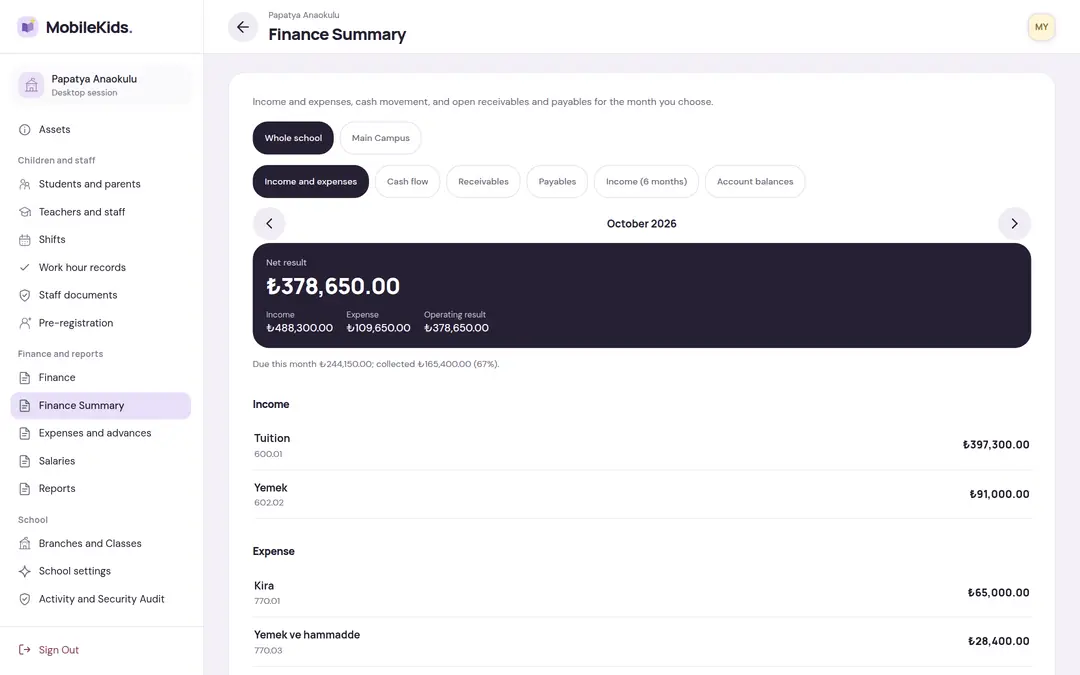
Income and expense, cash movement, receivables and payables for the month you choose. No entries are made in a closed month; corrections are written to an open month.
Bulk import
You upload your earlier records as CSV with a template. Before uploading, you see what will happen to each line; only error-free lines are written.
Second-person approval
Sensitive actions such as refunds, credit notes, late fees and exchange rates wait for another authorized person’s approval.
Limited by permission
Only people with finance permission see finance. If a permission is limited to one branch, they work with that branch’s records.
Staff and the running of the school
From shifts to salary records, from pre-registration to transport; the school’s back-office work runs in the same place, under the same permission system. You turn off a module you don’t use; its data isn’t deleted.
Staff
Leave, shift and transport duties run through the employee record; an employee without an app account is recorded too.
Shifts
You fill the week from a template, place people and publish. Swap and takeover requests come to you for approval.
TeacherSchoolWork time
Employees record their clock-in and clock-out; the record is final once approved. Correction requests go to the authorized person.
TeacherSchoolLeave
You define the leave types: in days or hours, paid or requiring a document. Requests come to the authorized person to decide.
TeacherSchoolStaff documents
The status of the documents required for a duty, person by person; documents awaiting review come to the front.
SchoolSalary records
The month’s salaries are entered person by person and sent to finance as an expense; open advances are deducted. Payroll isn’t calculated; only amounts are recorded.
SchoolExpenses and advances
Employees ask for an advance or report spending out of pocket with the receipt; the authorized person approves, finance pays.
TeacherSchool
Operations
Admissions period, supplies, building and transport.
Pre-registration
From the interview to enrollment: applications, quota, a waiting list with sibling and staff-child priority, offers and contracts.
SchoolStock and counts
Receipts, issues and waste are written as separate movements. A difference found in a count is posted once an authorized person approves it.
SchoolSupply requests
A teacher asks for the supplies needed; the authorized person approves and buys them, and they are received when they arrive.
TeacherSchoolAssets and maintenance
The branch’s assets are tracked with a maintenance schedule; when maintenance is due, a task lands in the work queue.
SchoolFaults and job reports
Something broken, missing or dangerous is reported and assigned to the person responsible. A report concerning child safety goes to the top.
SchoolTransport
Vehicles, routes, stops, trips and transport incidents. The teacher records boarding and getting off; the parent requests a stop change.
ParentTeacherSchool
Numbers in reports, actions in the record
You see the period’s numbers next to the previous period’s. Who did what at the school, and when, stays in a record that can’t be altered.
Reports
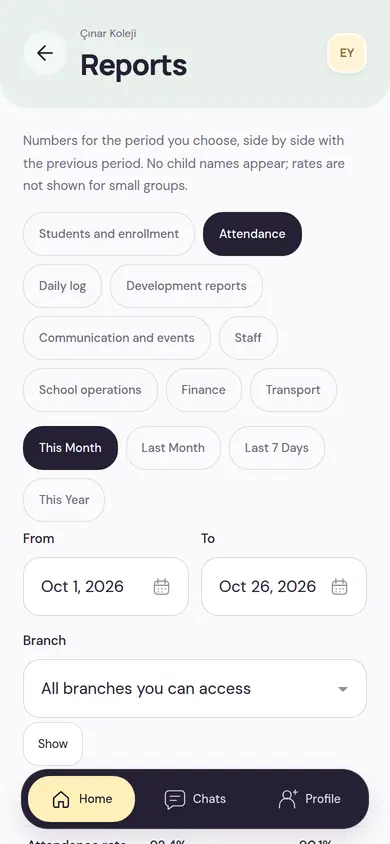
Students and enrollment, attendance, daily log, development, communication and events, staff, operations, finance and transport. You choose the period and branch, and download as CSV, XLSX or PDF.
Scheduled delivery
You set a report to weekly or monthly; a notification arrives when the file is ready.
Privacy in reports too
Reports don’t contain child names; ratios aren’t shown for small groups.
Activity and Security Audit
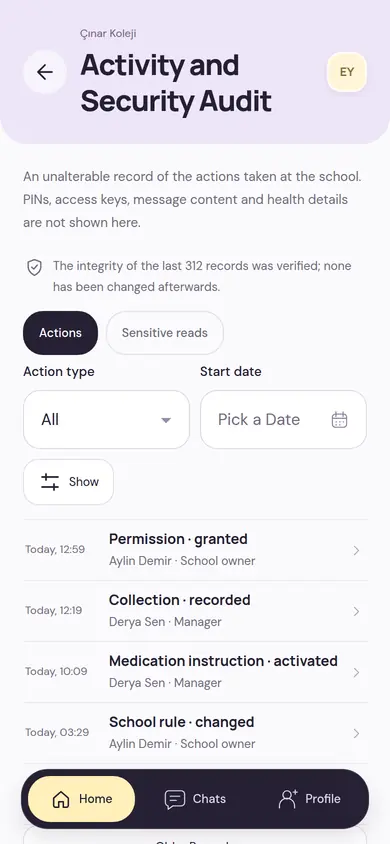
Granting permissions, collections, rule changes: who did what, and when. The screen verifies that records haven’t been changed afterwards; sensitive reads are listed separately. PINs, message content and health details don’t appear here. The school owner grants the permission to see this record.
Setting up your school, step by step
Setup Steps wait for you on the home screen. You go in order or leave a step for later.
Create your school
You enter your role at the school and the school’s details. The first person to create the school becomes its owner.
Get your school verified
You enter the legal details and add documents such as a founding certificate or an education institution permit; the platform team reviews them. Until it is verified, invitations can’t be sent to real numbers.
Open your branches and classes
You define your branches, classes, capacities and academic term.
Invite your teachers
You send invitations by phone number, assign teachers to classes and set the permissions of managers and staff.
Add students and parents
You add students to their classes; for each child you invite the parent by phone number and mark the legal guardian.
Choose your rules
Pickup settings, what is recorded in the daily log, the modules you’ll use, the fee plan and notification settings.
14-day free trial
The trial starts when the first teacher joins the school or the first student is added. All features are open during this time; the capacity is as follows:
Nothing is deleted when the trial ends. Your records stay readable; new classes, teachers, students and invitations open with a subscription.
One plan, your school’s subscription
There are no tiers like Basic or Pro; all modules are in a single plan. The school owner manages the subscription.
- Monthly, 6-month or yearly
- No limit on students, teachers and classes with a subscription
- Manage on Desktop is included in the plan
- Free for parents and teachers
Desktop for heavy work
Finance, reports and long lists are easier on a wide screen. School screens open in a computer browser with a side menu; sign-in has no password, it is done with your phone’s approval.
- Sign-in with a single-use code on the phone and a pairing number
- A session separate from the phone, closed after 30 minutes without activity
- You see connected browsers from the phone and can close them
Let’s set up your school together
Write your school’s name and the number of branches and classes; we’ll explain how to start the 14-day trial and which steps wait for you.